Webinar Presentation Tips: 13 Ways to Speak Confidently and Engage Your Audience
Learn practical webinar presentation tips to speak with confidence, keep your audience engaged, improve delivery, and make your next webinar more impactful.

How do I present a webinar confidently and keep my audience engaged?
Confident webinar presenting comes down to strong opening structure, conversational delivery, built-in audience interaction, and deliberate practice. The best webinar presenters treat their session like a conversation with specific people, not a broadcast to an anonymous crowd.
Step-by-step:- Open with a hook in the first 7 seconds to set the tone for the entire session
- Use an outline rather than a full script to keep your delivery natural
- Build interaction points (polls, Q&A, chat prompts) into every 5-7 minutes of content
- Practice with recording and feedback loops, not just mental rehearsal
- Reduce visual clutter on slides so your voice and presence carry the session
- Treat your camera lens as a single person you are speaking to directly
Most "be more confident on camera" advice misses the actual problem. Confidence on a webinar is a structural issue you can fix with preparation, not a personality trait you either have or you don't.
The presenters who hold attention are the ones with a session built segment by segment to give the audience a reason to stay every five to seven minutes.
Almost everything that makes a webinar feel flat is fixable with technique. Stronger opens, shorter segments, real interaction baked into the script, energy you actually plan for across a 45-minute session.
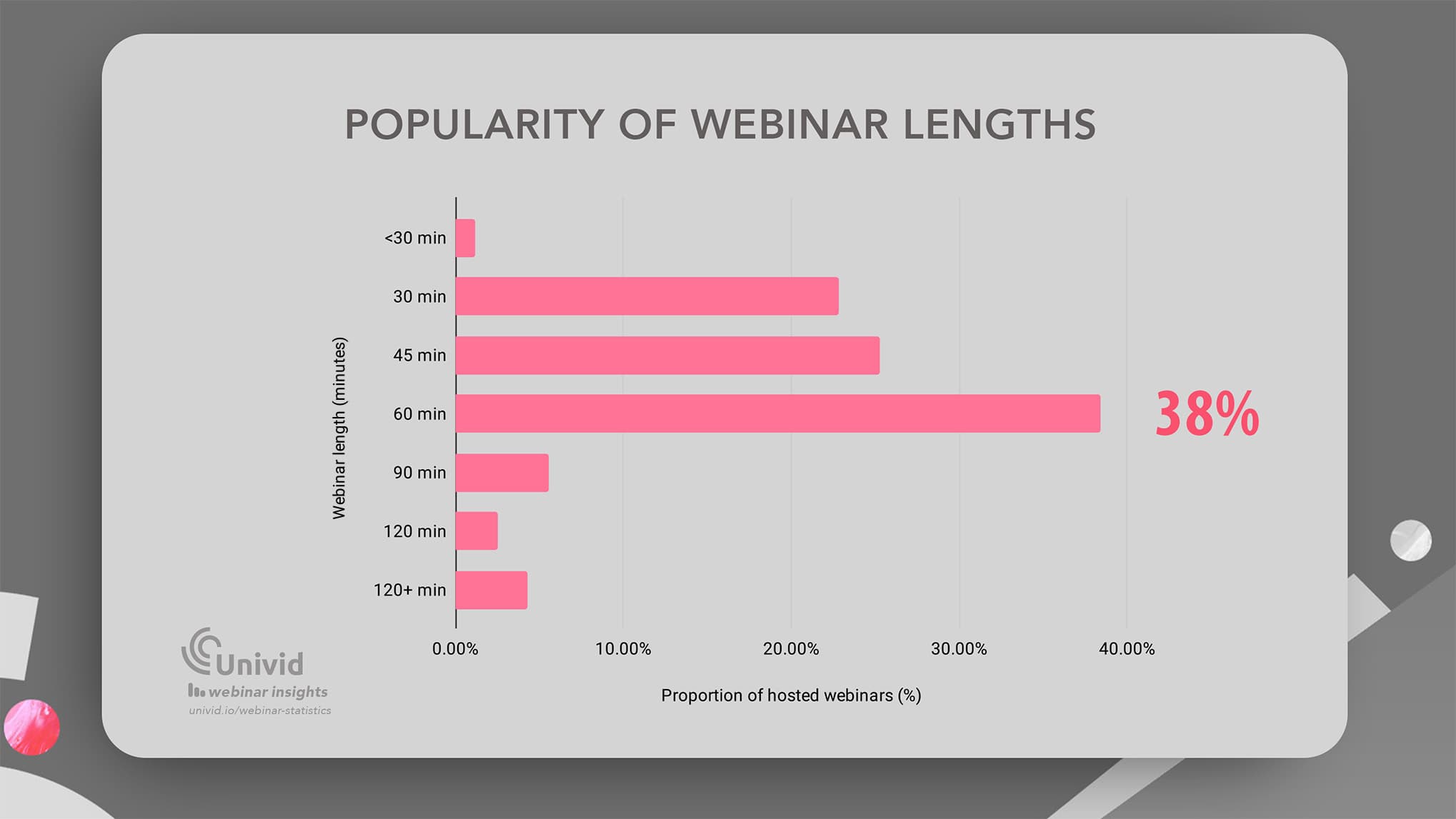
And data show most webinars are between 30 - 60 minutes, which gives you plenty of time to build relationships and go in depth - but also highlights the need to interact with the audience and keep them engaged. In fact, webinars between 45 and 60 minutes in length see the highest conversion rate, which makes presentation structure and interaction critical to getting all the way.
This article walks through what disciplined presenters do differently, and how the engagement tools inside Univid plug into each of those habits so your audience stays in the room without having to switch tabs.
Why Do Webinar Audiences Disengage?
Most "webinar tips" skip past this question and head straight for the advice, which is exactly why the advice keeps failing.
Once you understand what attention actually looks like inside a live online session, every technique in the rest of this article stops sounding like generic presentation coaching and starts making mechanical sense.
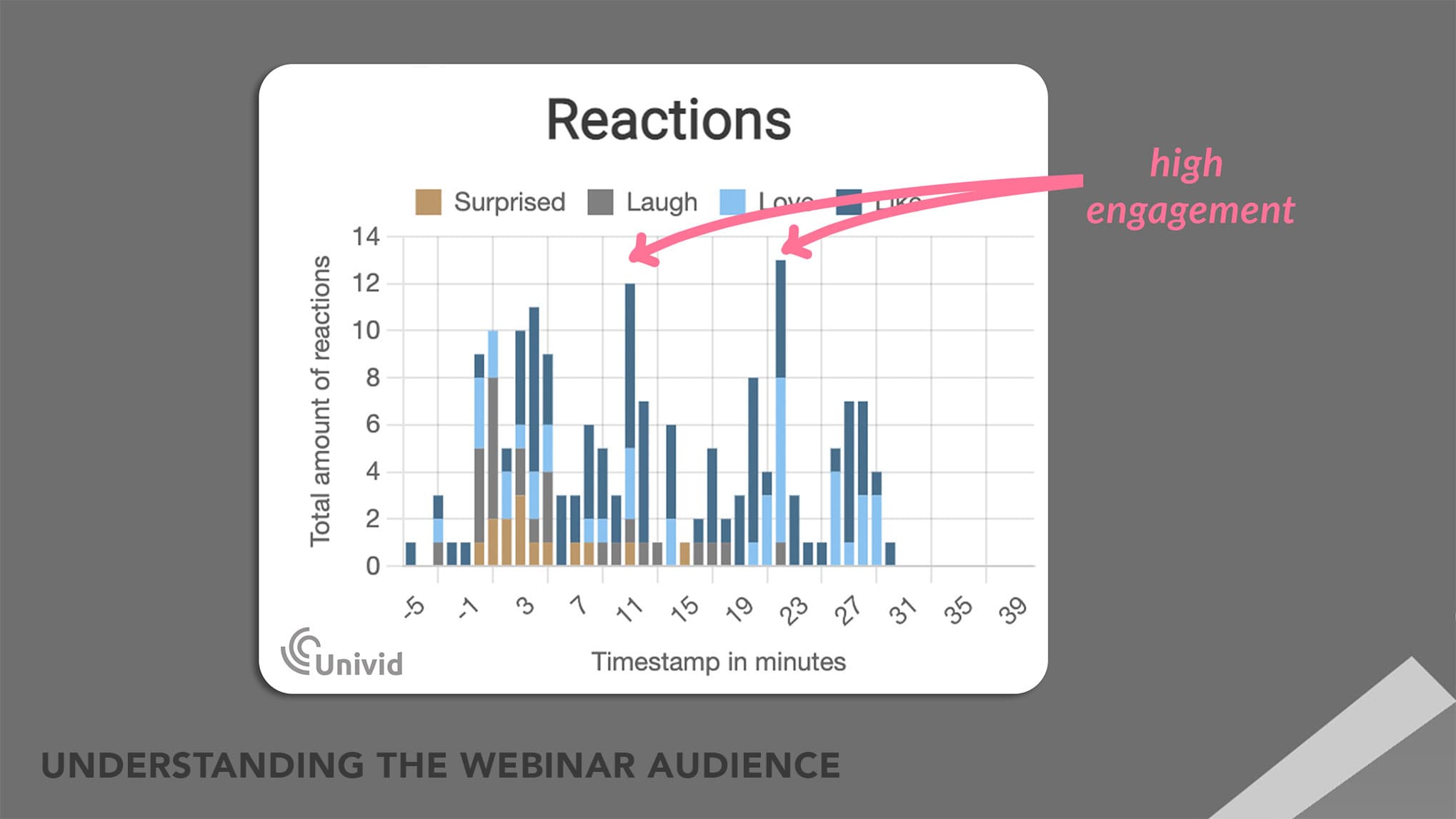
Three forces work against you the moment a webinar goes live, and ignoring any of them is how strong content ends up with a half-empty room by minute 25.
Instead, look at data to understand how audiences interact with webinars - both your own webinar analytics, but also industry benchmarks for webinars to understand best practices and how you measure up.

Your audience is fighting more distractions than any live audience in history
Second monitors, Slack pinging in the corner, email previews sliding down, a phone face-up on the desk, you are competing against everything else open on their machine in real time.
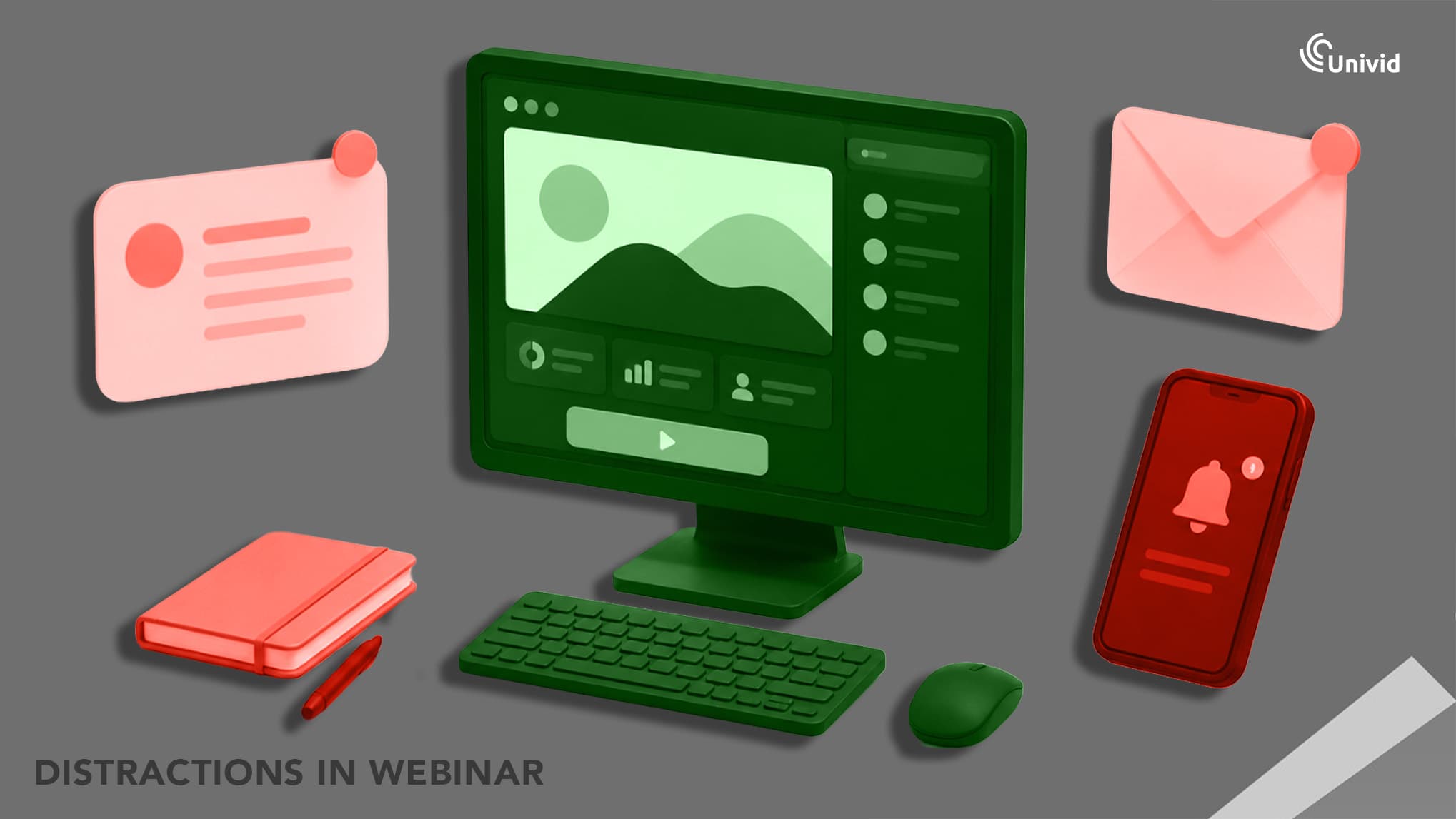
Microsoft’s 2025 Work Trend Index found that the average Microsoft 365 worker is interrupted every two minutes by a meeting, email, or notification. That is the real environment your webinar enters: attendees are not just listening to you, they are trying to listen while their workday keeps pulling them sideways.
Online attention cracks far earlier than most presenters assume
Research published in the Journal of Occupational Health Psychology found that virtual meetings increase passive fatigue and reduce cognitive performance, especially when participants are not actively engaged.
In the study, researchers analyzed nearly 400 meetings among knowledge workers and found that boredom and under-stimulation, were major drivers of attention loss in virtual settings.
You are presenting half-blind
No nodding heads, no eye contact, no body language reading back at you, which means you are guessing at the room and adjusting on instinct alone.
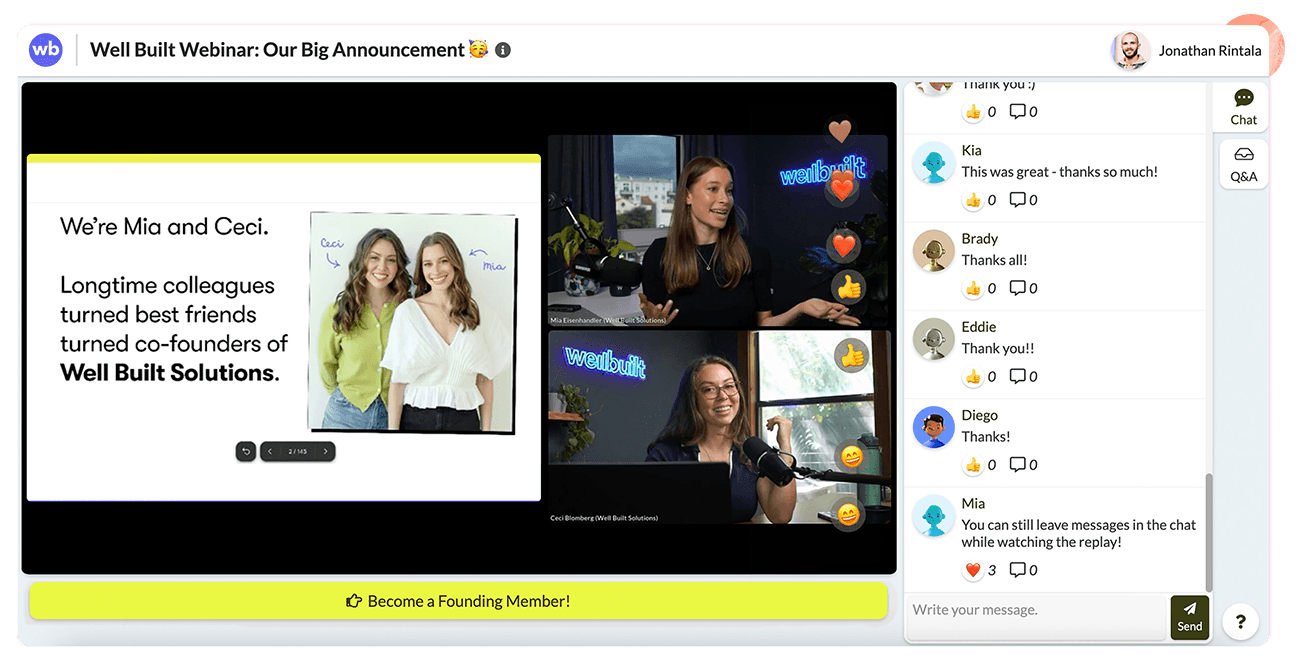
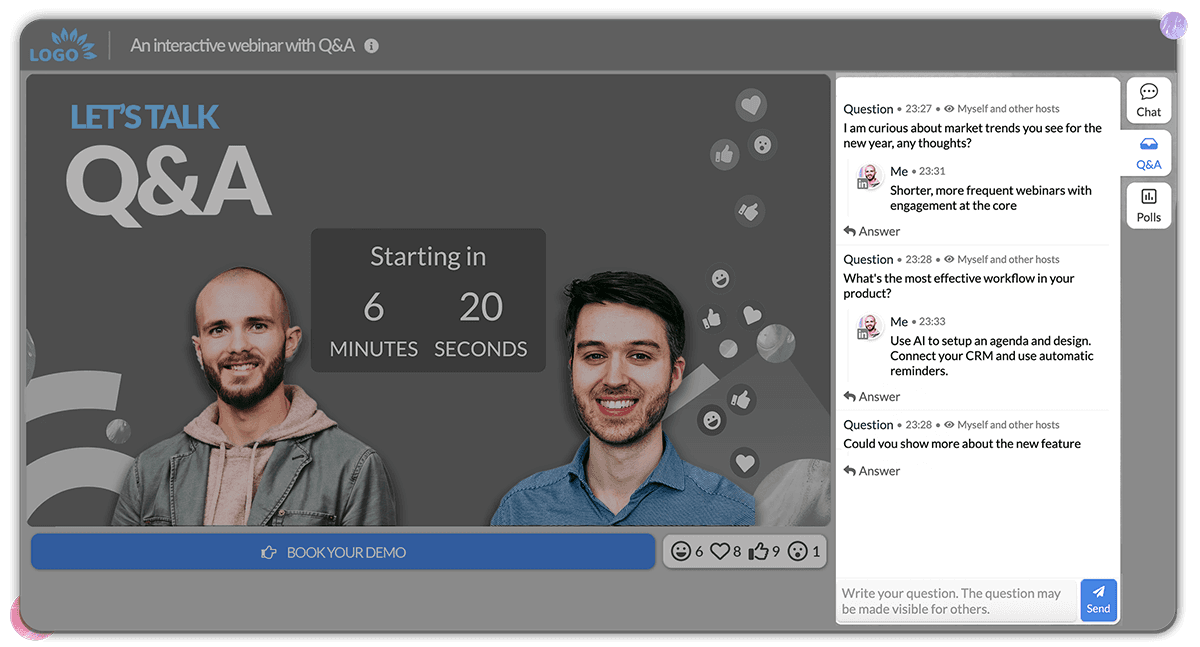
Engagement through polls, reactions, live reactions, chat and Q&A thus become an important feedback loop for you as well. To understand what people want to hear more about, or if the pace is right.
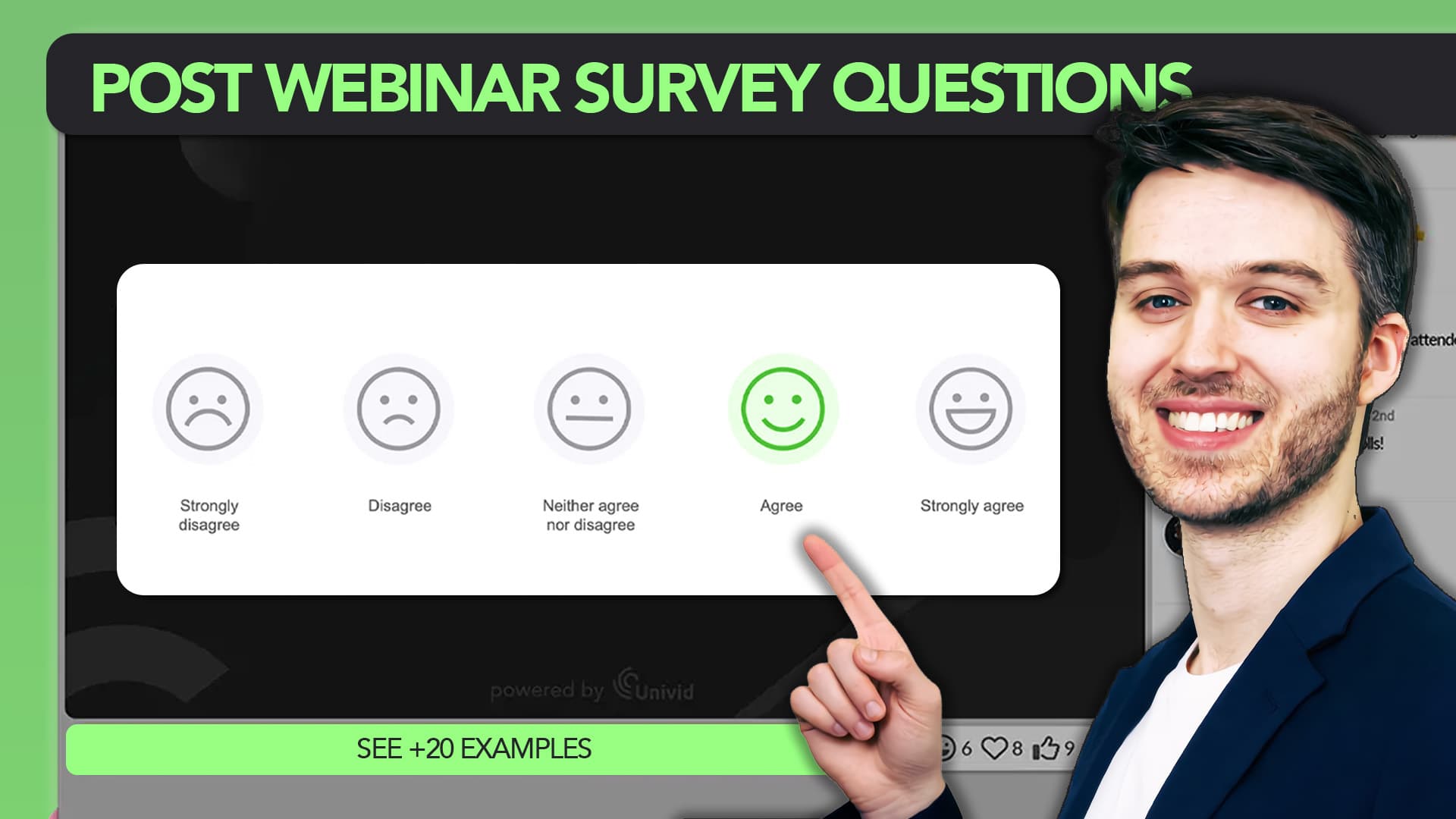
Tracking webinar engagement and performance after the session or running a post-webinar survey is the only way to measure what really worked. More than you leaving the webinar presentation with a good gut feeling.
What Confident Presenters Do Differently
The presenters who hold attention through a 45-minute session are running a different playbook from the ones who lose the room at minute eleven, and the playbook is more boring than most people expect. Four habits show up consistently:
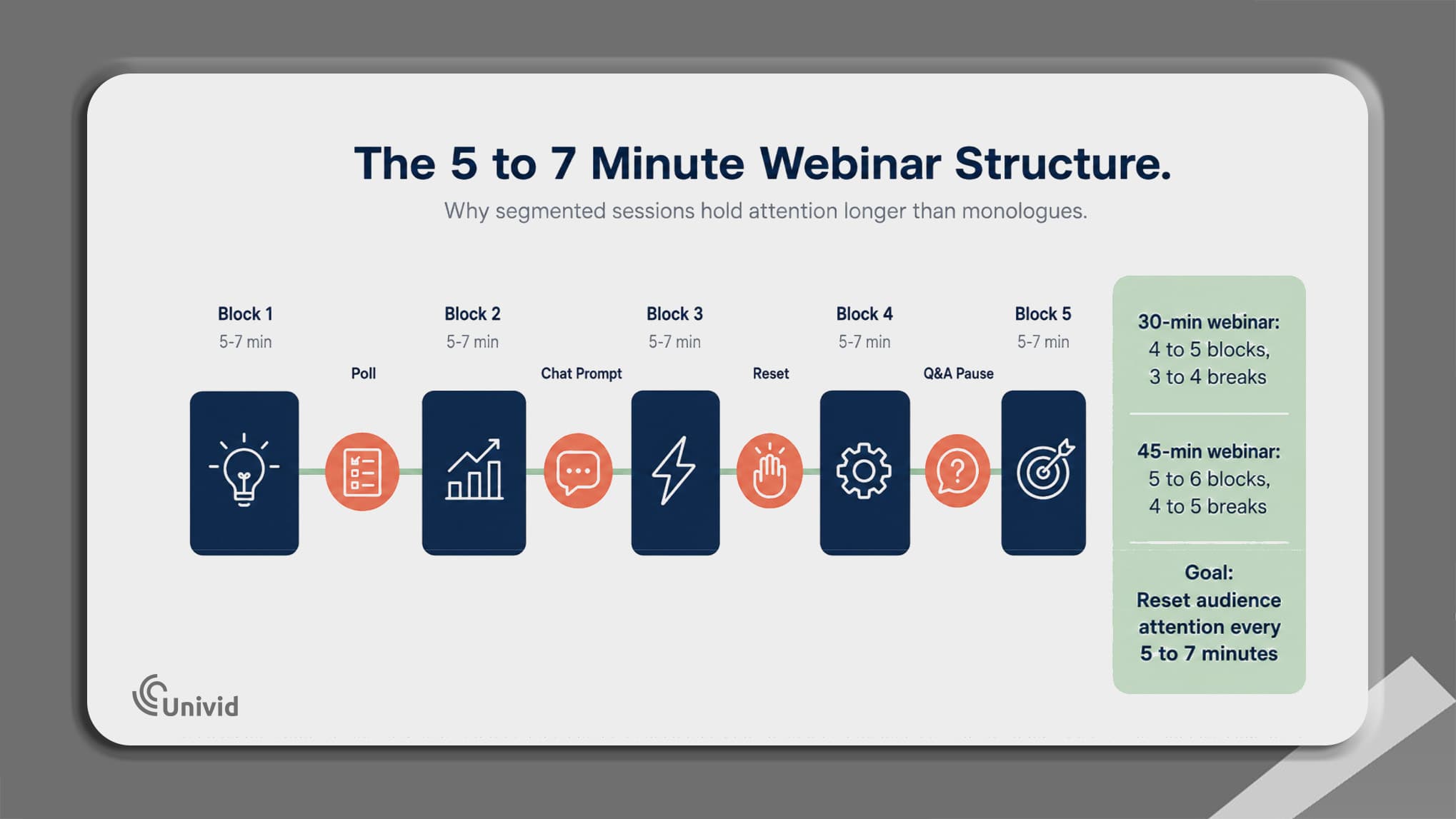
They build the session as a series of short 5 to 7 minute segments, with a deliberate interaction moment placed at every transition between blocks
They speak to one person, treating the camera lens as a single human they respect rather than a faceless attendee count in the corner of the screen
They prepare the first 30 seconds more rigorously than any other part of the session, because the open is what decides whether the next 30 minutes get a real chance
They use polls, chat prompts, and Q&A as actual presentation tools woven into the script, with each one placed at a transition point where the audience needs a reset anyway
How to Structure Your Webinar for Maximum Engagement
Structure decides whether your delivery has anywhere to go. Three structural moves handle most of the heavy lifting.
The first 7 seconds set the tone
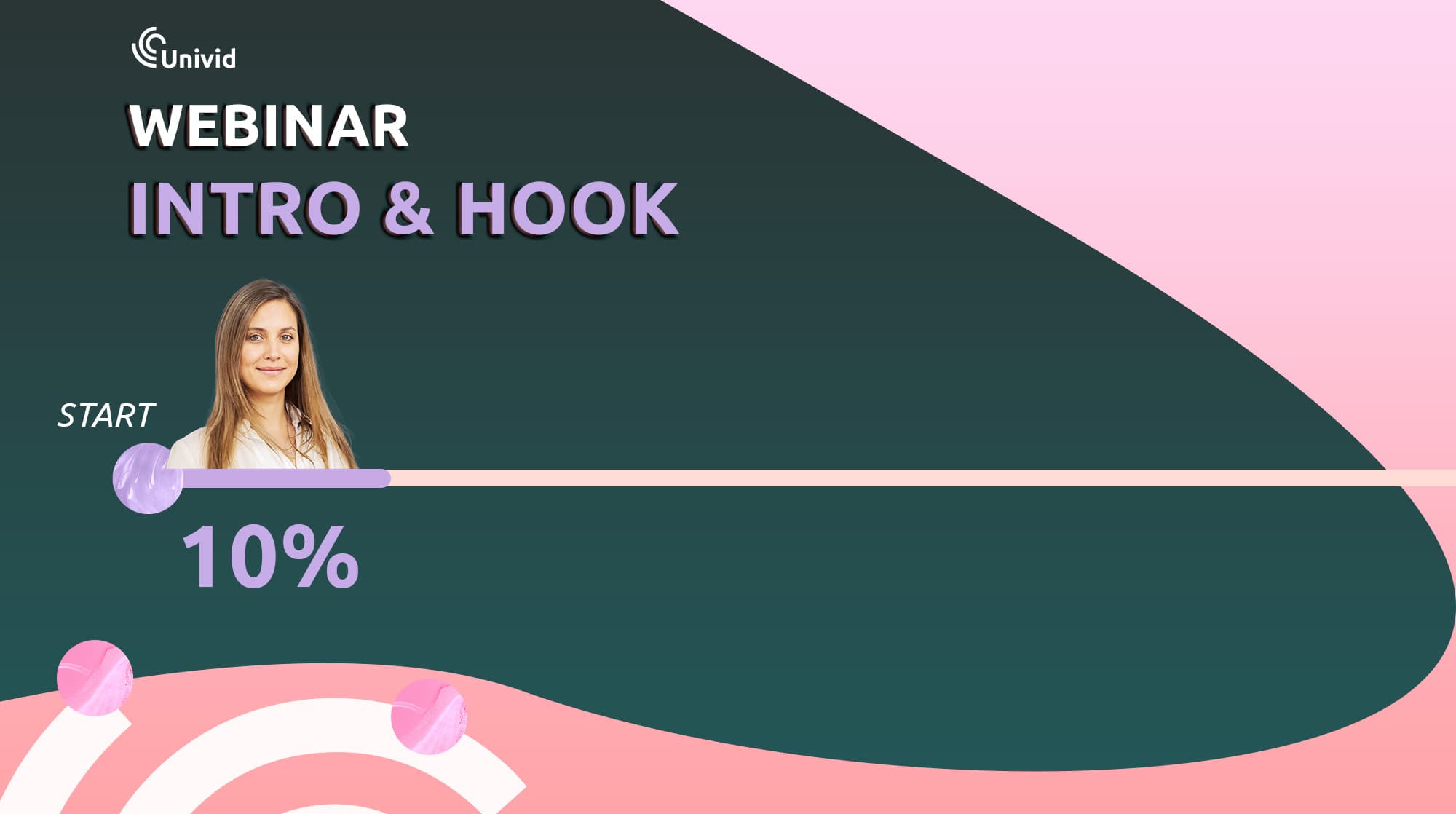
Researcher Vanessa Van Edwards ran an experiment where viewers rated TED Talks based only on the first seven seconds with the audio muted, and those ratings predicted how the same viewers scored the full talks.
Your audience makes a snap judgement about you before you have said anything useful, and webinars only sharpen that effect because the camera is small and the room is already half-distracted.
So "Hi everyone, thanks for joining, give us a minute while I share my screen" is the worst possible open. It signals housekeeping and burns the only seven seconds you cannot get back.
Three openings that consistently work:
"By the end of this session, you will know exactly why your pipeline stalls in Q3 and how to fix it."
"Last month, one of our customers cut their onboarding time by 40%, and I am going to show you exactly how."
"Quick question, how many of you have sat through a webinar and checked your email in the first five minutes? Drop a number in the chat."
Break your content into 5 to 7 minute segments
Plan a webinar like a podcast with chapter markers, where each chapter covers one idea, ends on a beat, and hands the audience an interaction moment before the next one starts.
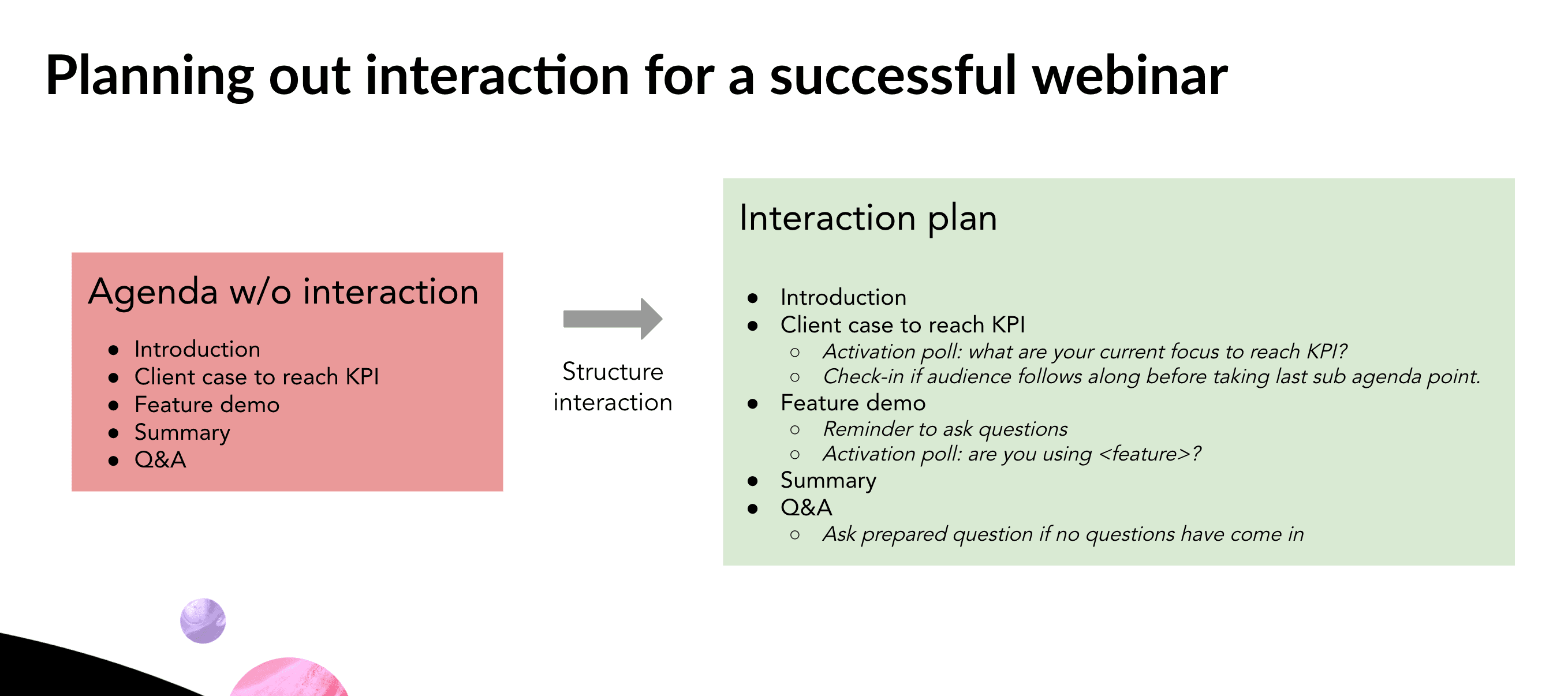
The math is simple. A 30-minute session breaks into 4 or 5 content blocks with 3 to 4 interaction breaks folded between them. A 45-minute session expands to 5 or 6 blocks with 4 to 5 breaks.
In practice, one block might be three minutes on a concept, two minutes on a specific example, then a chat prompt to close it ("how is your team forecasting today, drop the method in the chat").
Eight minutes have passed, the audience just made a small commitment, and you have a real read on the room before you move on.
The deeper reason this works is that it changes what the audience is anticipating. A continuous monologue makes them wait for the end.
A segmented session built around interaction tools like polls, chat, and Q&A makes them wait for the next moment they get to participate, which keeps them present even when they are not typing.
End with a clear takeaway
Most webinars die in the last five minutes. Energy drops, the slides run out, and the close turns into "alright, that is what I had, thanks everyone." Whatever you built up across the session leaks out in those final 90 seconds.
Plan the close as carefully as the open. Summarize two or three specific things the audience should do next, with enough detail that they could write them on a Post-it.
"Step one, audit your Q3 pipeline using the four questions on slide 14. Step two, set up the velocity scoring model we just walked through. Step three, run it side by side with your current forecast for one quarter."
A close like that tells the audience the session was useful and makes your webinar CTA feel earned rather than tacked on.
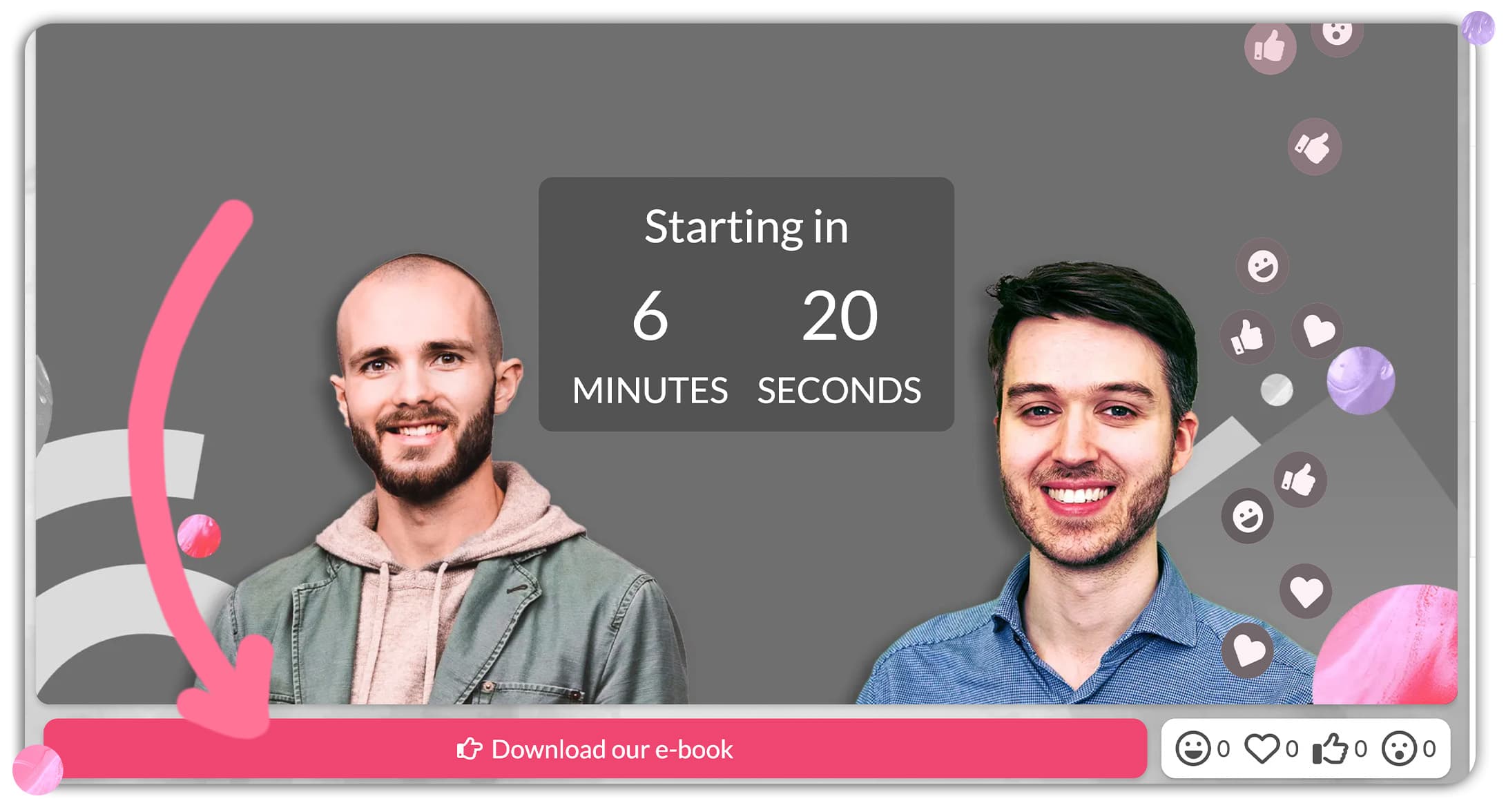
If you have a demo, free trial, or follow-up call to offer, deliver your CTA as a natural next step inside that same list. And naturally - make sure you use a webinar platform with CTA:s.

"Step four, if you want to see how this works end to end, book a 15-minute walkthrough using the link in the chat." Same pacing, no awkward pivot into the pitch.
How to Deliver with Confidence When You Cannot See Your Audience
Structure gets the room ready, delivery is what holds it. Four habits separate the presenters who sound natural on camera from the ones who sound like they are reading.
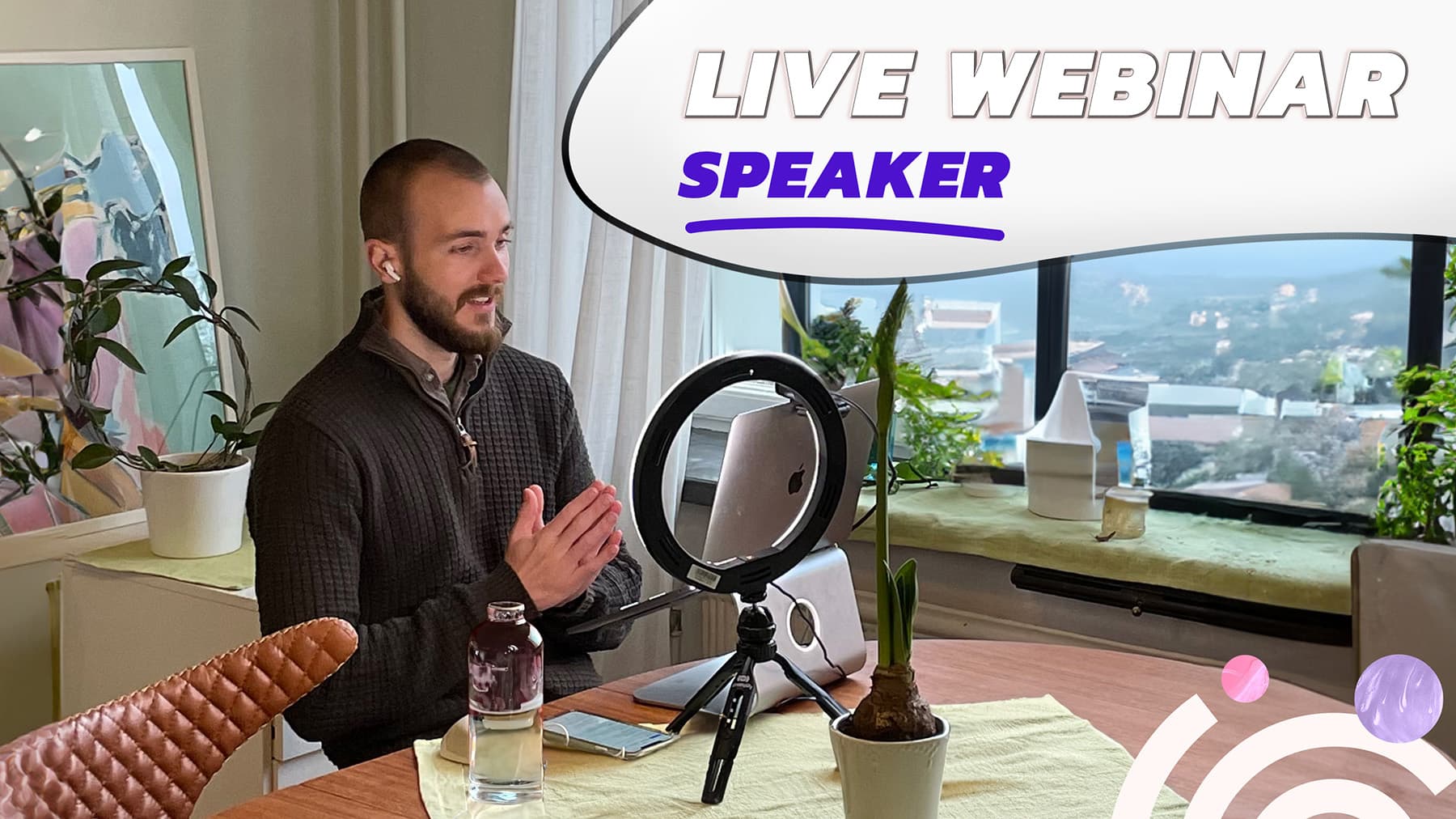
Speak from an outline, not a script
Reading a full script word for word will make you sound robotic, and your audience can hear it. Build a bullet outline with key phrases and natural transitions instead, and speak each point in your own words. If you need a safety net, write the opening and closing verbatim since those are the highest-stakes moments, then let the middle flow.
Talk to one person
The camera lens is your audience. Look at it, not at your slides, the attendee list, or your own video feed. Picture one specific person you respect and want to help, and explain the topic to them. If you feel yourself slipping into lecture mode, ask a direct question ("does this match what you are seeing in your pipeline?") to reset back to a conversation.
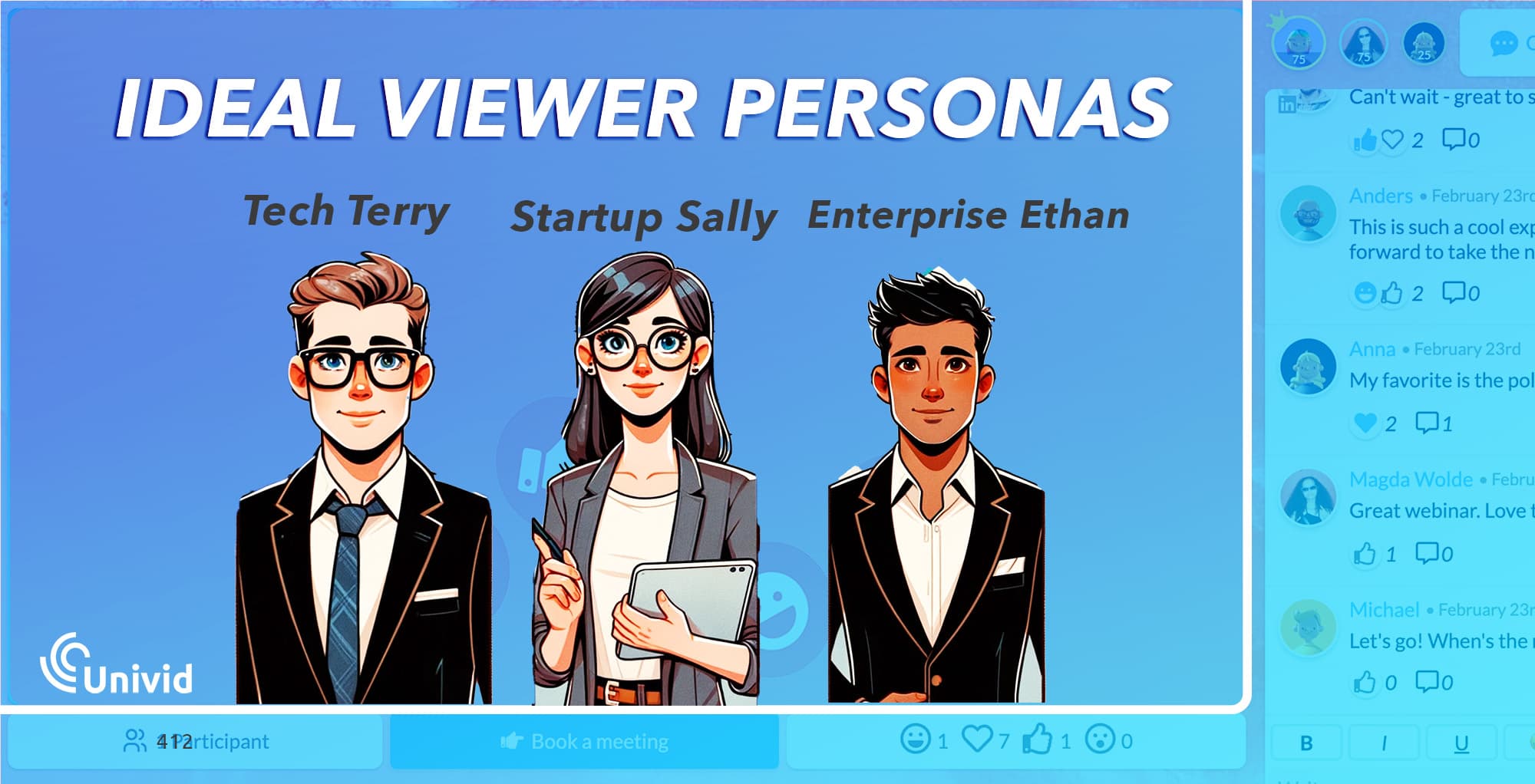
Typically, it helps picturing your Ideal Viewer Persona being on the other side. Make sure you talk to him or her!
Manage your energy across the session
Most presenters start strong and fade. Stand up if you can, since standing shifts your breathing and vocal energy in ways sitting cannot. Vary your pace, slow down for key points, speed up at transitions, pause before important statements (a real pause carries more weight than emphasis).
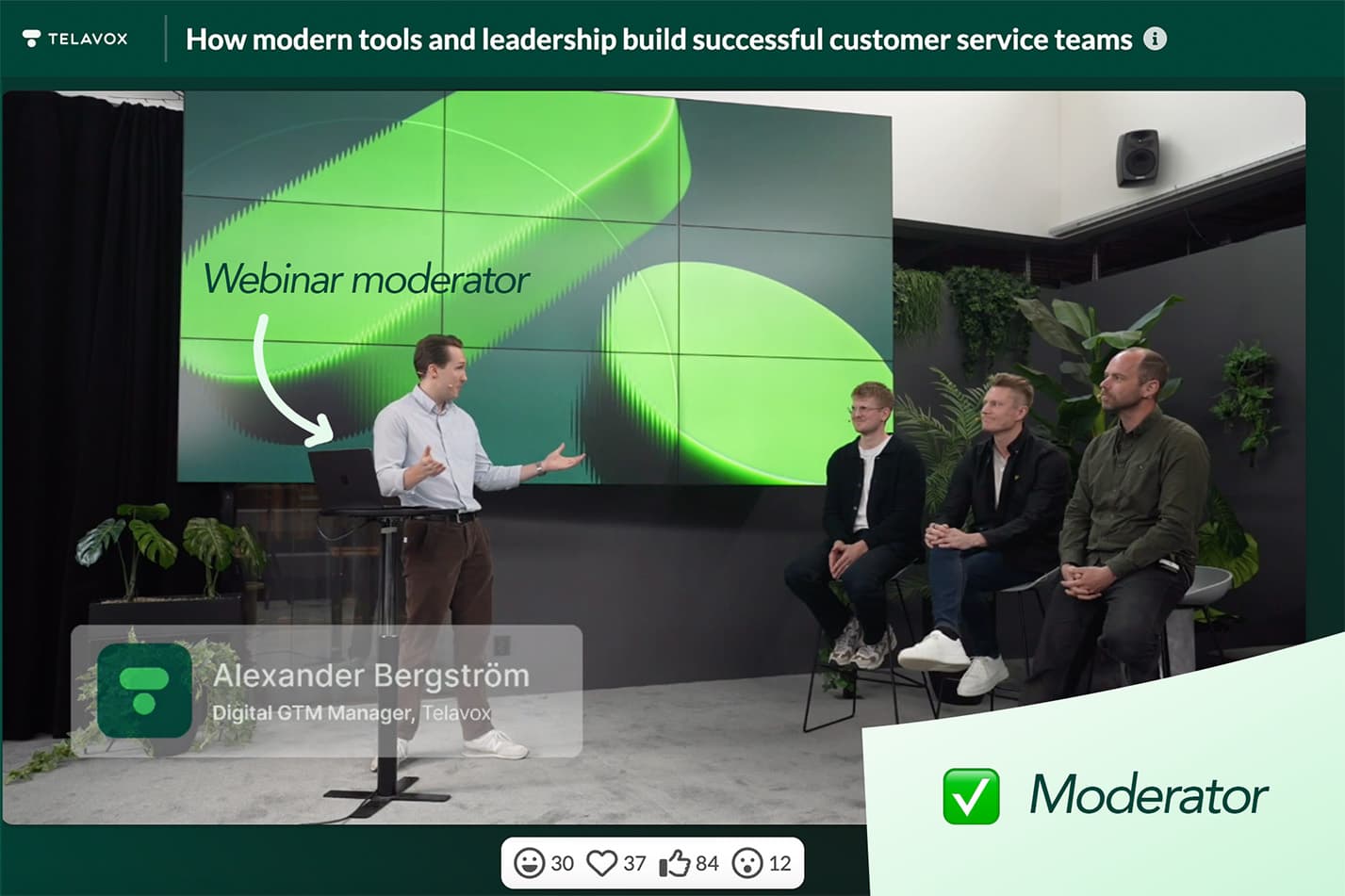
If you are co-presenting or moderating a panel, use the handoffs to reset.
Practice with recording, not just mental rehearsal
Record a full run-through of the webinar and watch it back, since you will catch filler words, pacing issues, and energy dips you cannot feel in the moment. Time it too.
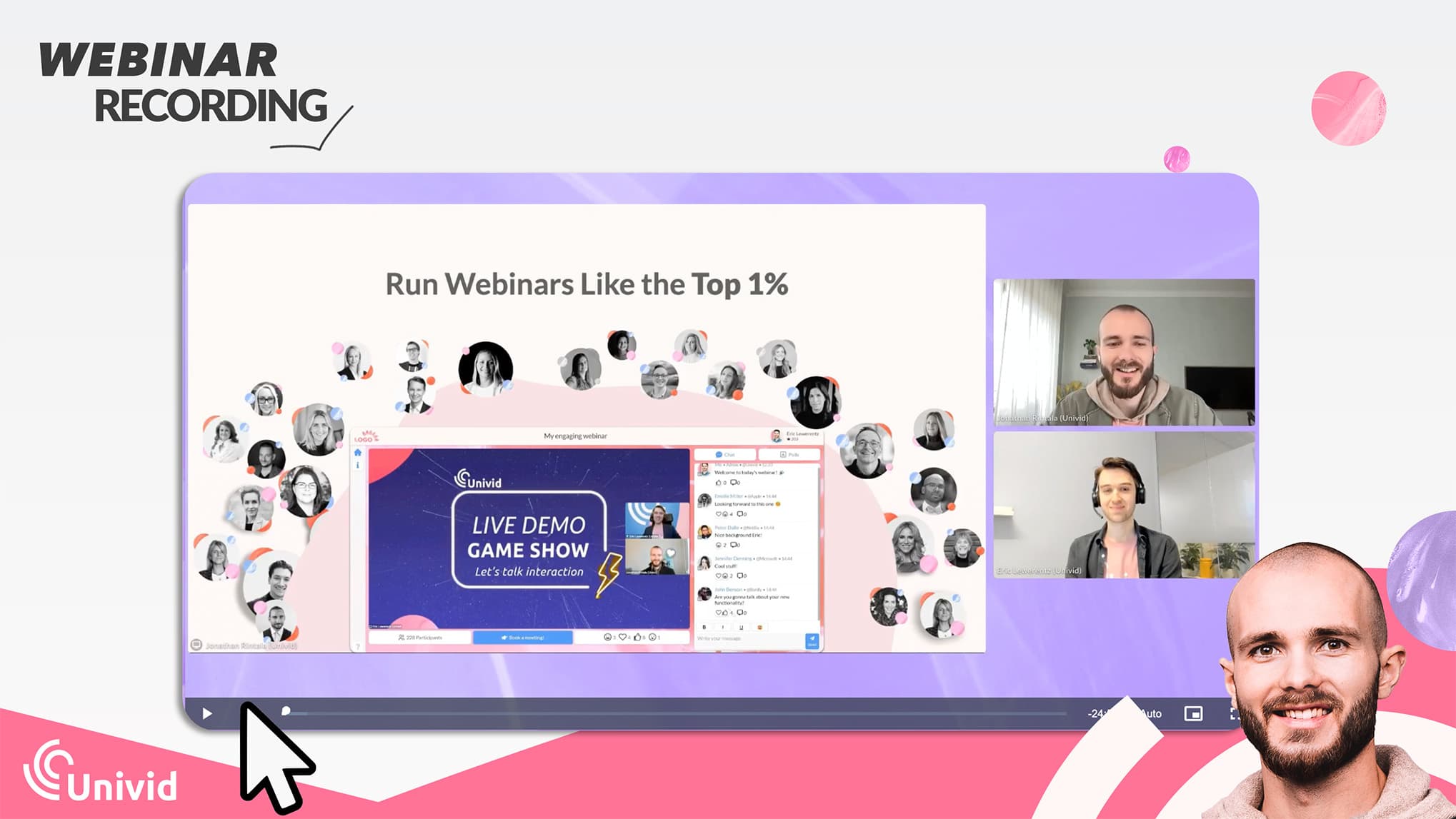
The average English speaker hits 130 to 150 words per minute, so a 6,000-word script for a 30-minute webinar has too much content. If you can, run it past one colleague and ask, "where did you lose focus?".
How to Use Interaction to Keep Your Audience Present
Delivery and structure get you to the door. Interaction is what keeps people inside the room.
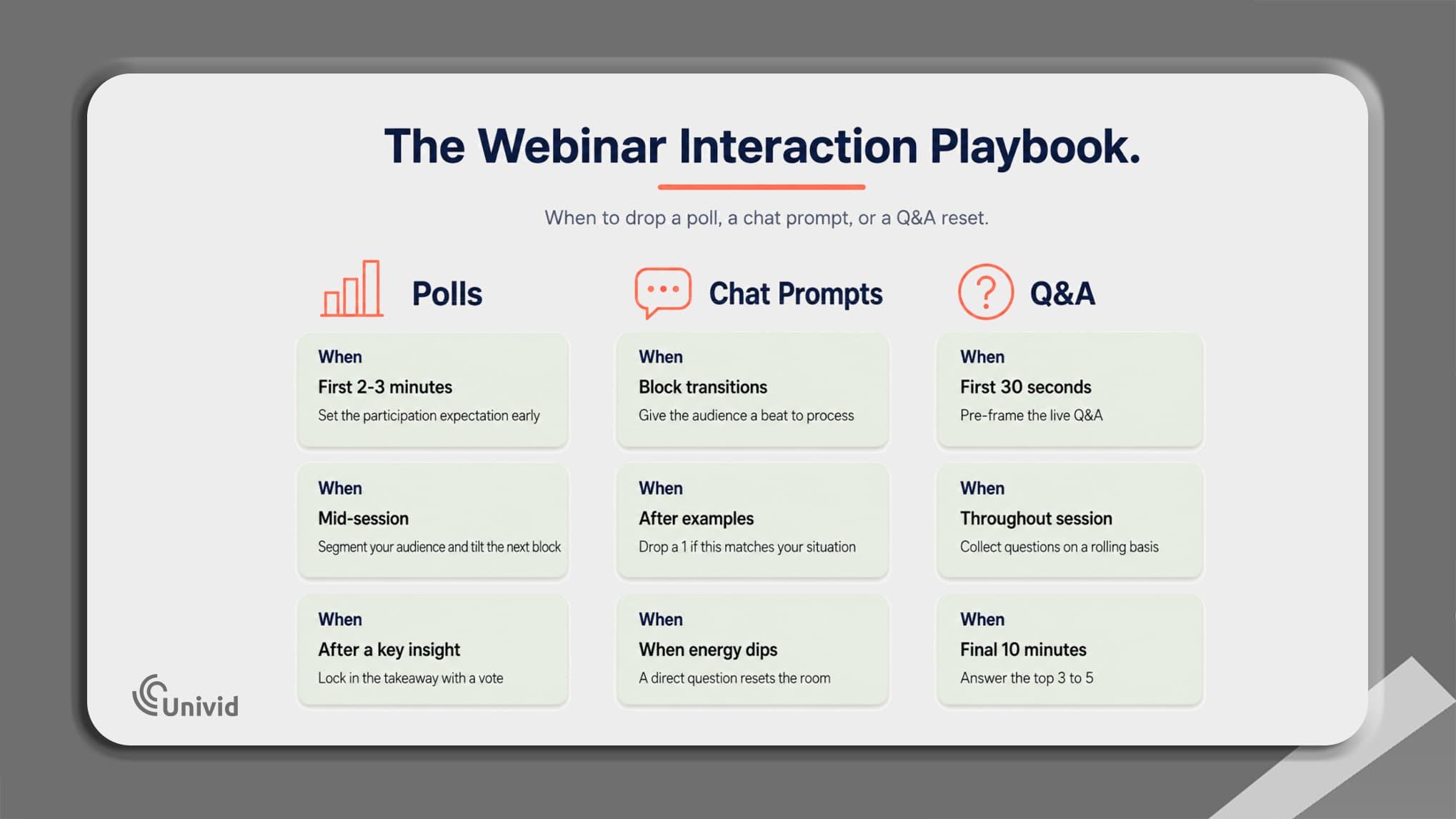
Three tools do the real work, and most presenters treat them as decoration when they should be running the show.
Polls: your best weapon against passive viewing
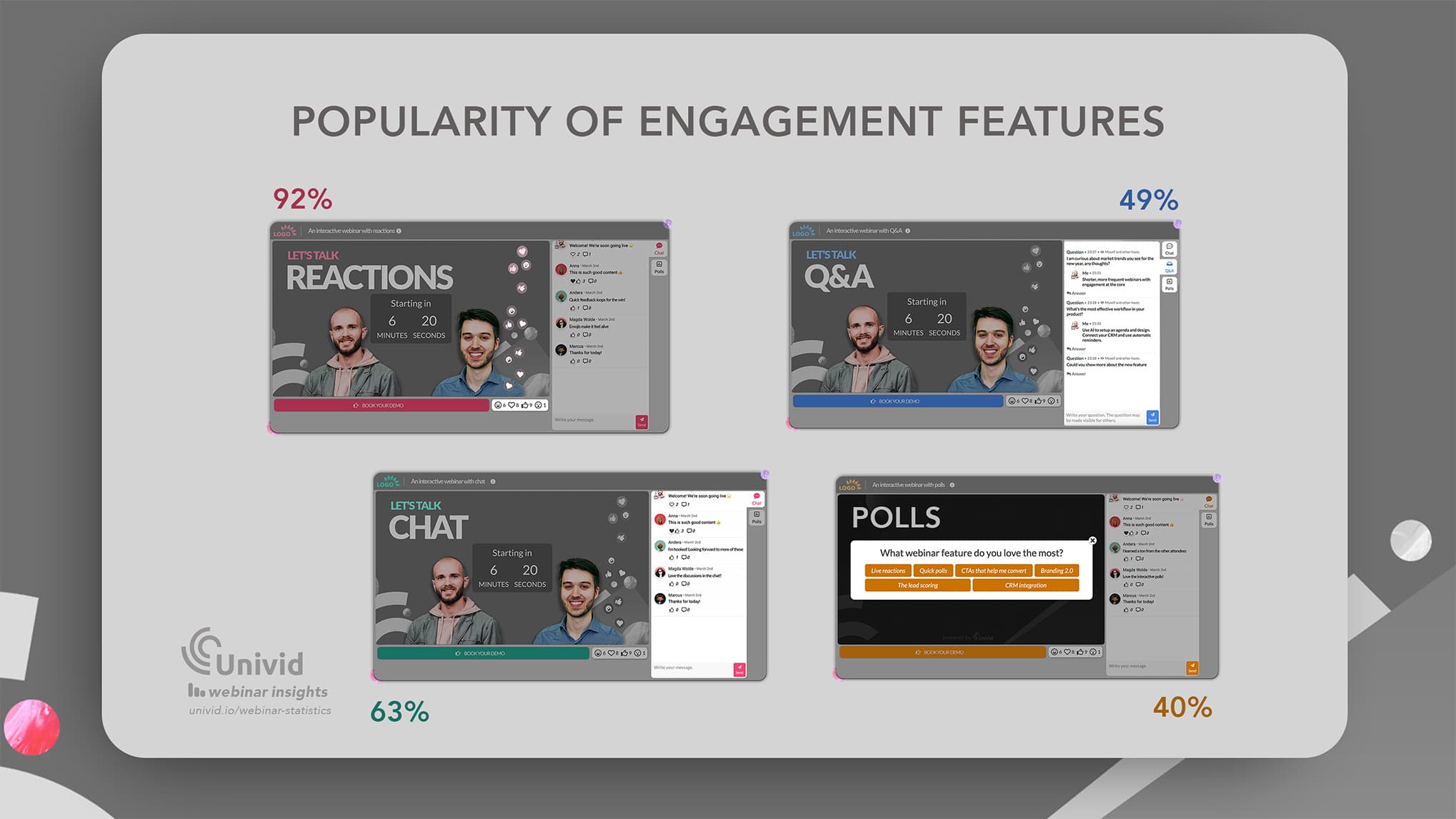
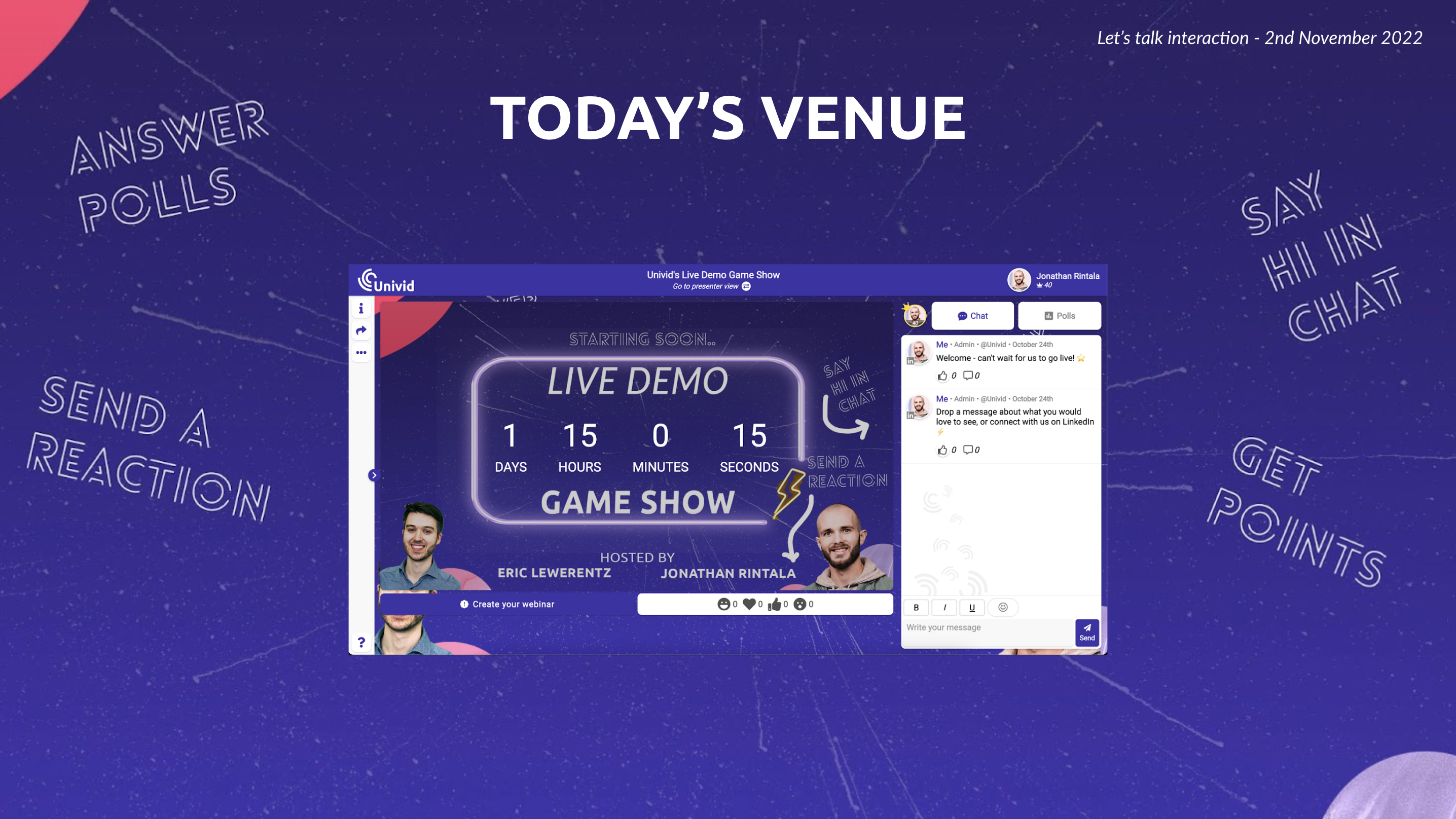
Data shows 40% of webinars use polls and the highest CTA conversion rate occurs when using all engagement features - make sure you are one of them. Drop your first poll inside the first two or three minutes, before you have even finished setting up the topic.
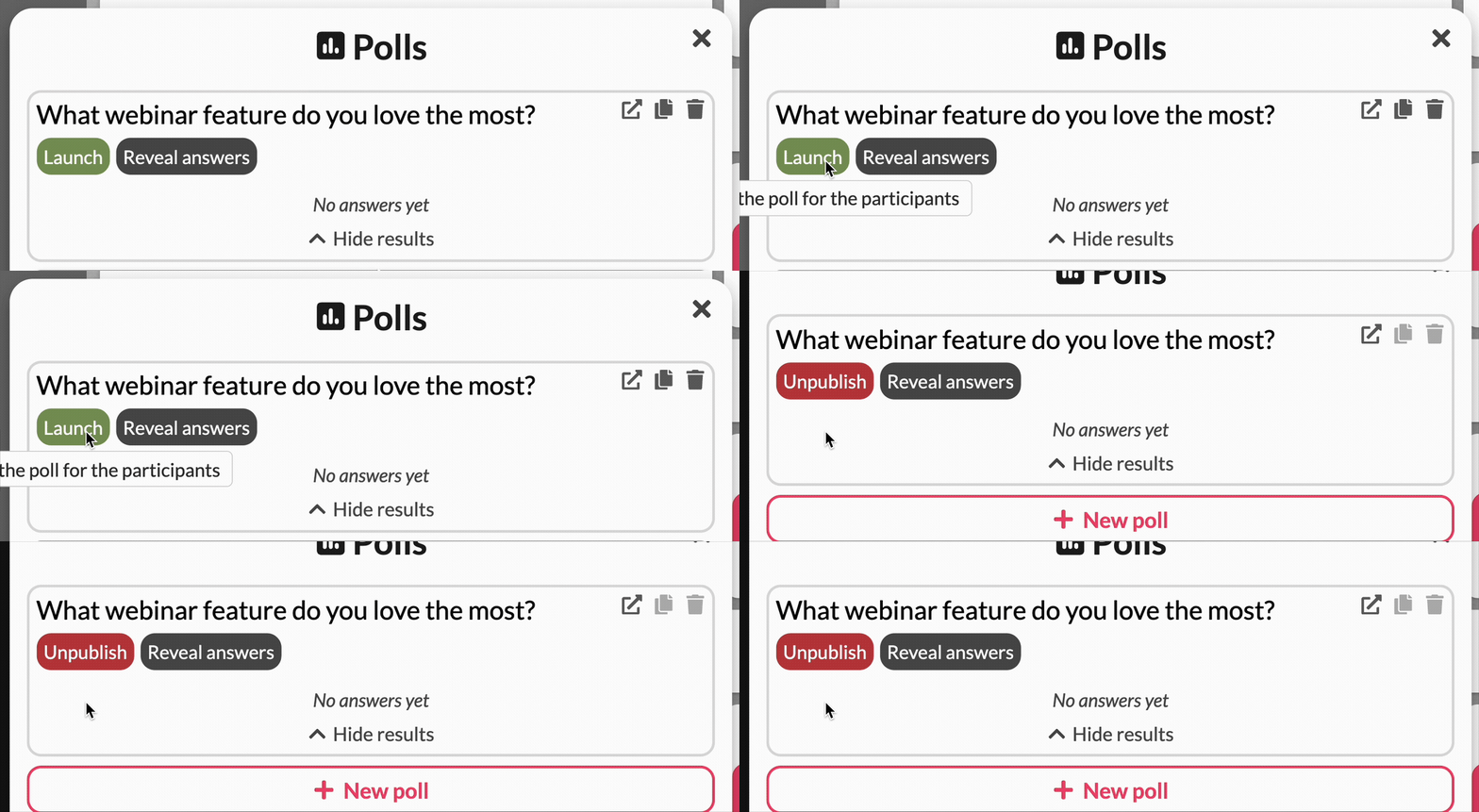
The question itself matters less than the signal it sends, that this session expects you to click and type, not scroll LinkedIn in the other tab.
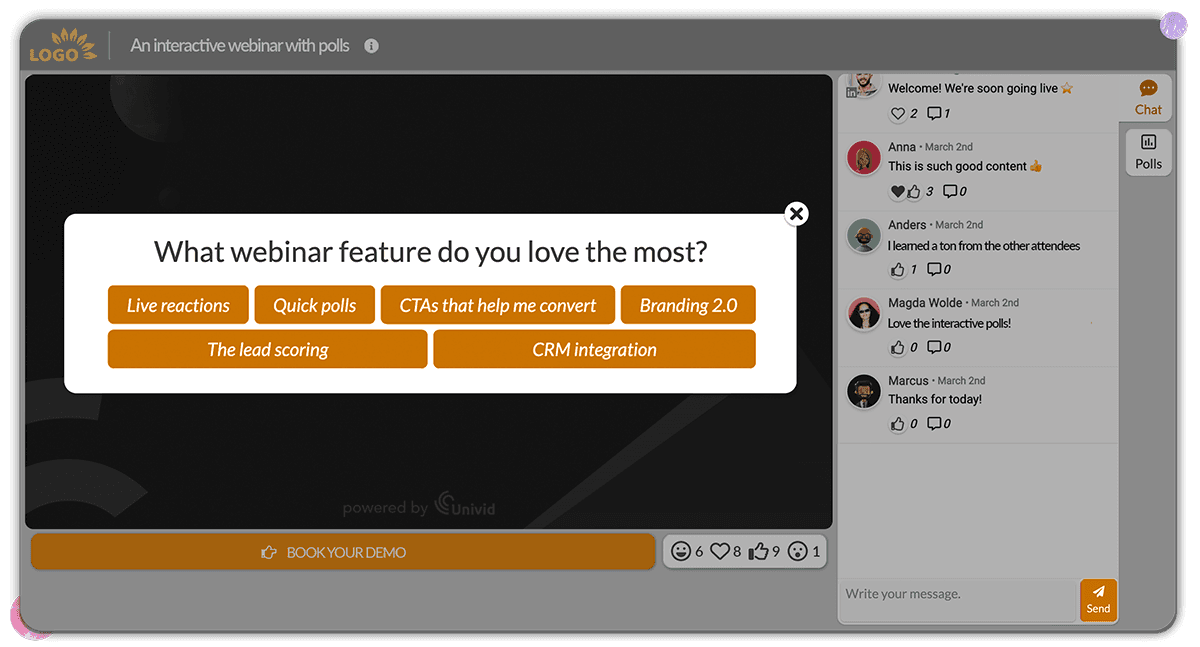
The deeper play is to use polls as live segmentation:
Open with a snapshot question: "Which of these is your biggest blocker right now?" or "How are you currently solving X?"
Wait 30 seconds, then show the results on screen: Let the audience see the room they are in.
Tilt the next content block toward whichever answer won: The audience just watched the session bend around their input, which feels different from watching a polished deck unspool at them.
Polls inside Univid launch live directly in the webinar room, so attendees never leave the session to vote and you keep the flow tight.
Chat prompts: turning silence into signal
A majority of webinars use the chat (63%), but how you use it matters. Organic chat is a myth in B2B webinars, so you have to seed it. Specific prompts work, vague ones die.
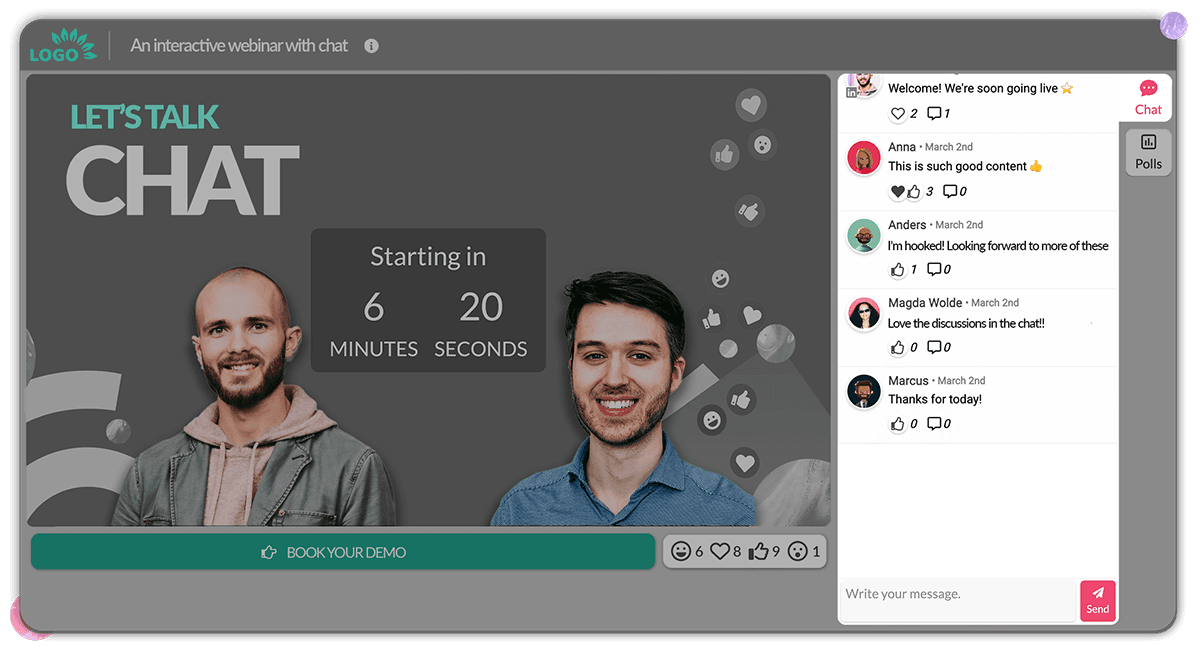
What works:
"Drop a 1 in the chat if this matches what you are seeing in your pipeline."
"What is the biggest blocker you are hitting with this right now, one line, no pressure."
What does not:
"Any thoughts?"
"Feel free to chat anytime."
Place prompts at the transitions between content blocks, where the audience needs a beat to process anyway.
Then read the chat live, by name. "Marcus says he is seeing the same thing on his Q3 forecast, that is a great example of what I just covered" turns one comment into permission for the next ten people to type.
Learn more about how to run the webinar chat like a pro in our video guide below.
Q&A: structure it or lose it
The worst Q&A format is the one most webinars default to: "any questions?" at minute 28, followed by 20 minutes of silence and one polite "this was great, thanks." That is not Q&A. That is the audience's escape route.
A Q&A that actually works has three pieces:
Pre-frame it in the first 30 seconds: "We will run a live Q&A at the end, drop your questions anytime, I will get to as many as I can."
Collect throughout the session using a dedicated Q&A feature instead of mining the chat at the end.
Ringfence a focused 10-minute block to answer the top 3 to 5 questions.
If you are running a panel or co-hosting, assign one person to curate questions while the other speaks, since running a strong Q&A session on the fly is genuinely hard for a single moderator.
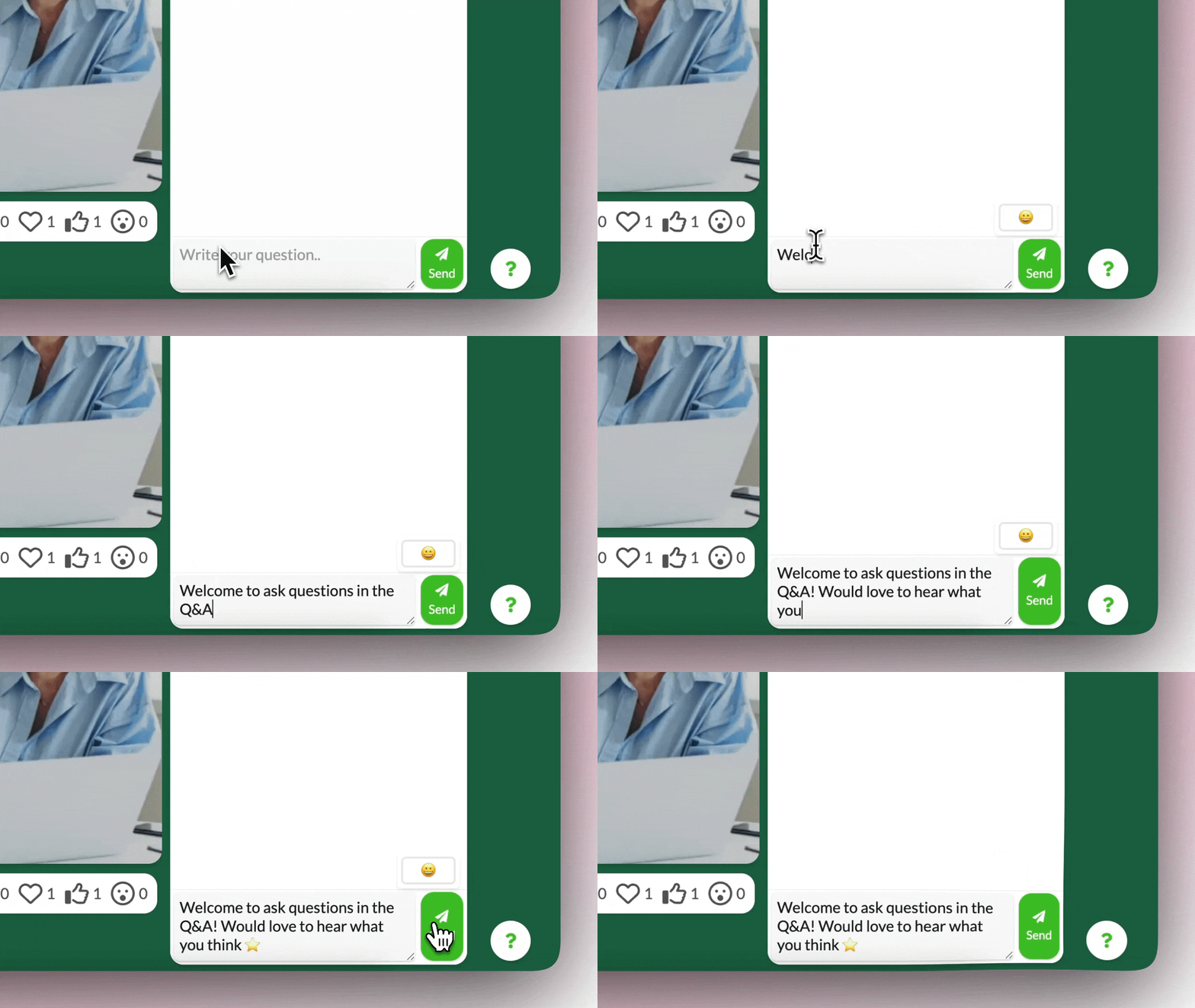
The whole interaction stack works best when polls, chat, and Q&A live in the same room rather than scattered across three different tools. This is backed by data that shows that the highest conversion on the CTA button (33%) occurs when all engagement feature work together.
Learn more about how to moderate (and use the webinar Q&A) like a professional in our video guide here.
Slide Design and Visual Delivery Tips
Slides are an extension of your delivery, so when they go wrong, your voice goes with them. Two rules cover most of the damage.
Less text, more presence
Slides full of text quietly hijack your session. The audience reads instead of listening, and your voice slides into the background.
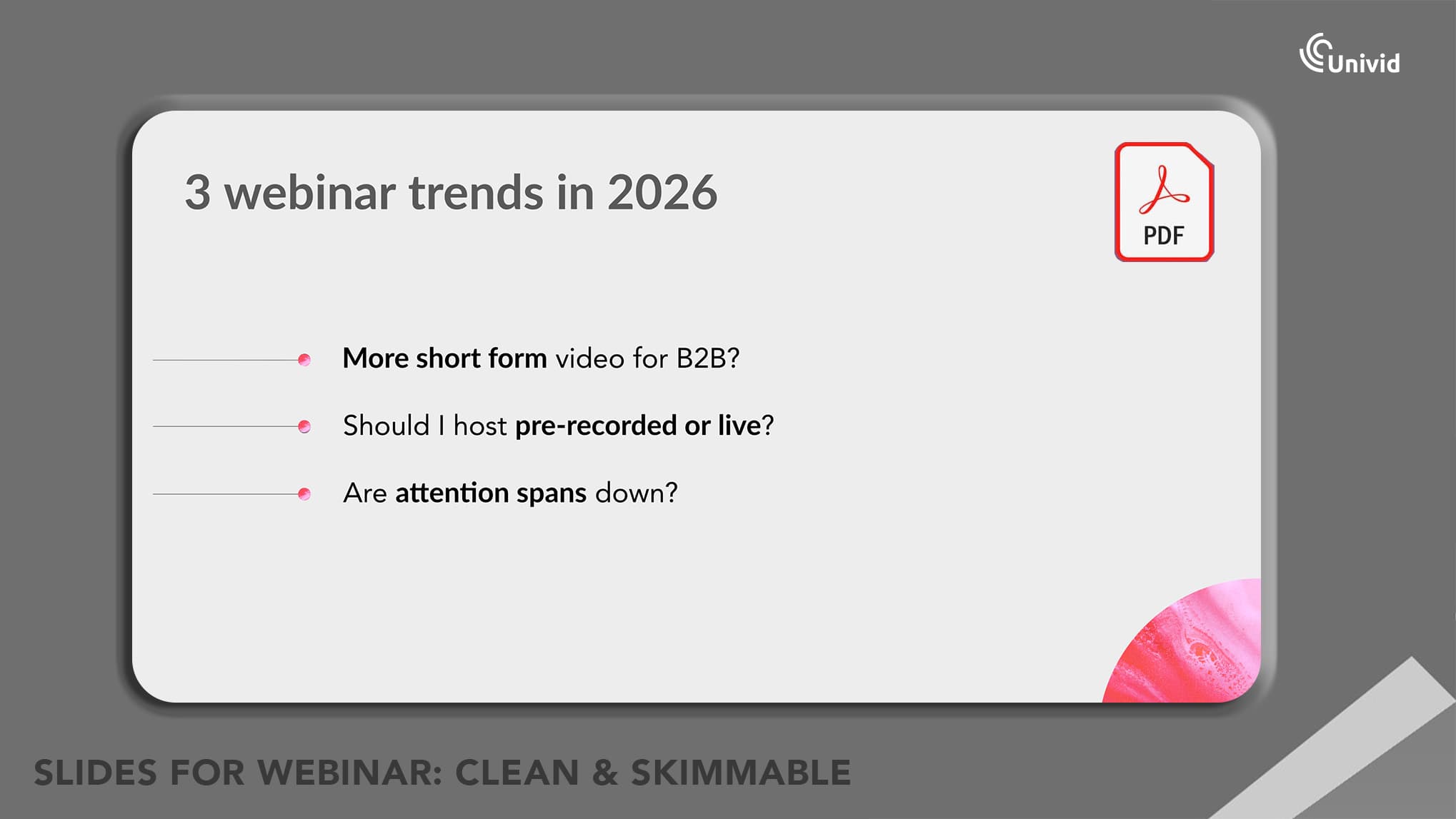
The fix is the "one idea per slide" rule:
One headline, one supporting visual or data point, nothing else: If you need notes, put them in speaker notes where only you can see them.
Minimum 24pt font, high contrast, simple visuals: A slide that takes more than three seconds to read is doing your audience's processing for them, badly.
Cut anything that is not load-bearing: If you can pull an element off the slide and the point still lands, the element was decoration.
Get this right and your slides start working as anchors for what you are saying, instead of competing with it.
Show your face
Webinars where the presenter's camera stays on consistently outperform slides-only sessions on engagement, and the reason is simple: a human face on screen creates the connection a deck cannot. People stay longer when there is somebody to stay for.
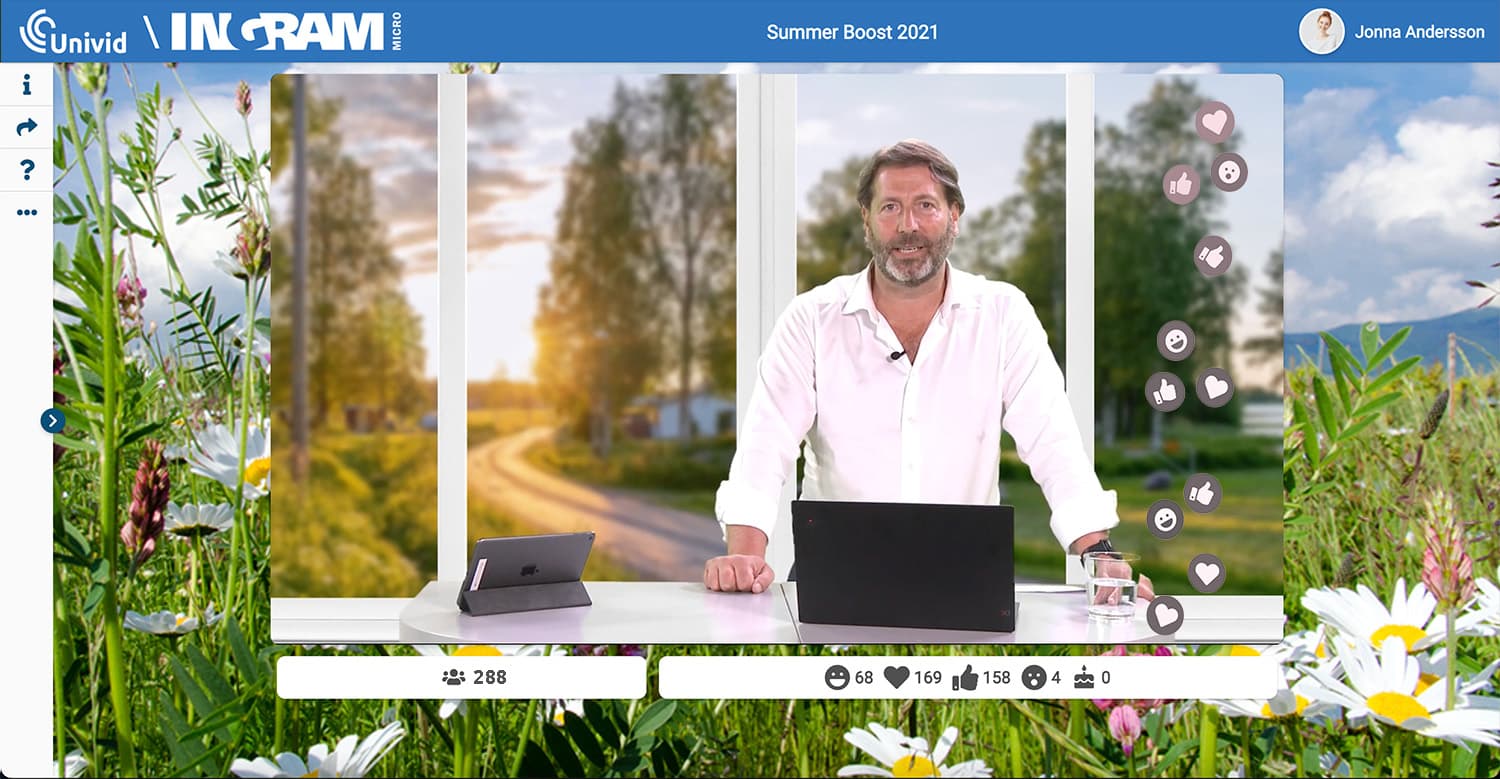
A few practical calls:
Use picture-in-picture if your platform supports it, so your face sits alongside the slides for the full session rather than disappearing the moment you start presenting.
If you cannot stay on camera the whole time, at minimum keep it on for the open and close. Those are the two moments where audience-presenter connection does the most work, and a disembodied voice walking into the close is the fastest way to flatten your CTA.
Frame yourself like a human, not a hostage. Camera at eye level, decent light hitting your face, plain background or a tidy office, no ceiling fan in the shot.
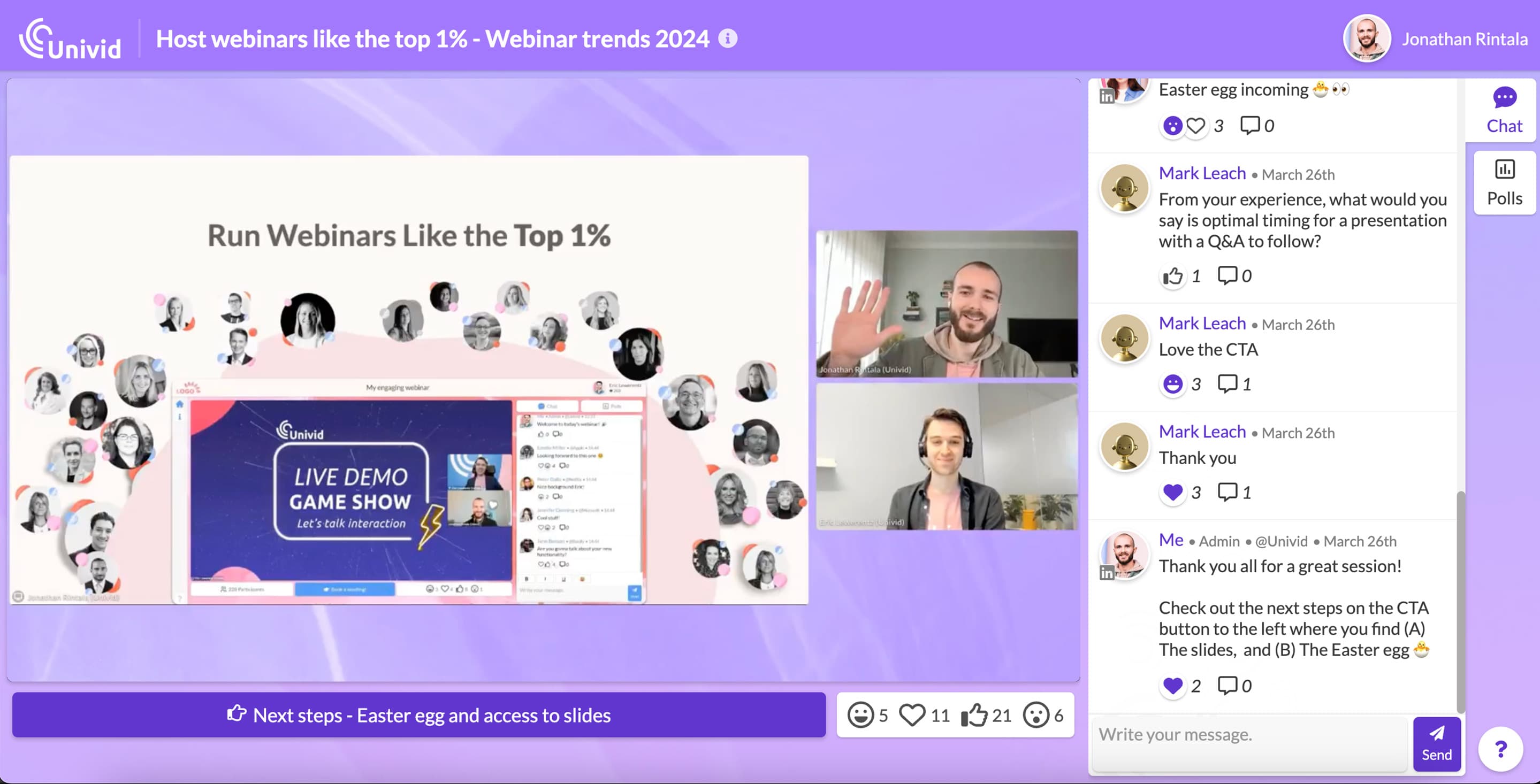
Camera-on is the closest you get to standing in the same room as your audience, and a webinar that feels like a room is one people stay in.
Webinar Presenting Do's and Don'ts
Do ✅ | Don't ❌ |
|---|---|
Open with a hook, question, or bold stat in the first 7 seconds | Open with "Hi everyone, thanks for joining, let me share my screen" |
Speak from a bullet outline and use natural language | Write out a full script and read it word-for-word |
Break content into 5-7 minute segments with interaction between | Deliver a 30-minute uninterrupted monologue |
Look at the camera lens when speaking | Look at your own video feed, slide deck, or attendee list |
Drop a poll or chat prompt every 5-7 minutes | Wait until the end to ask "Any questions?" |
Record a practice run and watch it back | Only rehearse mentally without timing or recording |
Use one idea per slide with minimal text | Fill slides with paragraphs the audience reads instead of listening |
Show your face on camera (at minimum for opening/closing) | Present slides-only with no camera for the entire session |
End with 2-3 specific next steps for the audience | Fade out with "Thanks everyone, bye" |
Stand up while presenting to improve vocal energy | Sit hunched over a laptop for 45 minutes |
The Takeaway
Great webinar content fails the moment your delivery loses the room. Confident presenting is a set of habits you can practice: strong opens, short segments, interaction baked into the script, camera on, outline over script. The presenters who actually fill pipeline from webinars are the most prepared ones in the room.
Your delivery gets the audience to stay. Univid's engagement tools give them a reason to participate. Spin up your next session in 60 seconds and see how interactive presenting actually feels.
Get started todayJoin over 70,000 users and create unique webinars with Univid.Get a demo