

Mitä synkronoituu OBS ja Univid välillä?
Esimerkkejä tiedoista, joita synkronoidaan Unividin ja OBS välillä
Miksi käyttää OBS Unividin kanssa?
Tehosta webinaarityönkulkuasi markkinointitiimeille suunnitelluilla tehokkailla ominaisuuksilla.
Saumaton integraatio
Yhdistä työkalusi vaivattomasti
Parempi analytiikka
Saat syvällisempää tietoa webinaarien suorituskyvystä
Aikaa säästävä
Automatisoi toistuvat tehtävät ja työnkulut
Parannettu kokemus
Tarjoa osallistujillesi parempi kokemus
Tietoa integraatiosta
What is OBS?
OBS is a powerful software for live streaming and recording video. For live broadcasts, the program enables you to easily pick up different video and sound sources, add different graphic elements, and produce your event locally while broadcasting to thousands of viewers.
Why is OBS a solid tool?
Studios, production companies, and professional streamers all over the world use OBS for live streaming. An extra nice thing about OBS is that the software is open-source and completely free to download. The software can be run on both Windows, Mac and Linux.
How to live stream using OBS?
Using OBS for live broadcasts generally requires that you stream to a destination using RTMP. A destination is usually the platform you want to broadcast to, where your viewers are located. For example. you can stream directly to Youtube, or Facebook for a more passive participant experience. Or a dedicated webinar platform such as Univid, for the best quality, control and participant experience.
No matter where you choose to stream, you need two things:
RTMP url
RTMP key
These two pieces of information ensure that your live broadcast ends up in the right destination (read location), and they are generated in the platform you will be broadcasting to.
How you live stream from OBS to a custom RTMP destinations - like the Univid webinar platform
Here is a video, where Jonathan from Univid walks you through how to set up a custom RTMP destination in OBS Studio, in order to live stream to Univid using OBS for video production.
In Univid you can easily generate your 1. RTMP url and 2. RTMP key through the following menu.
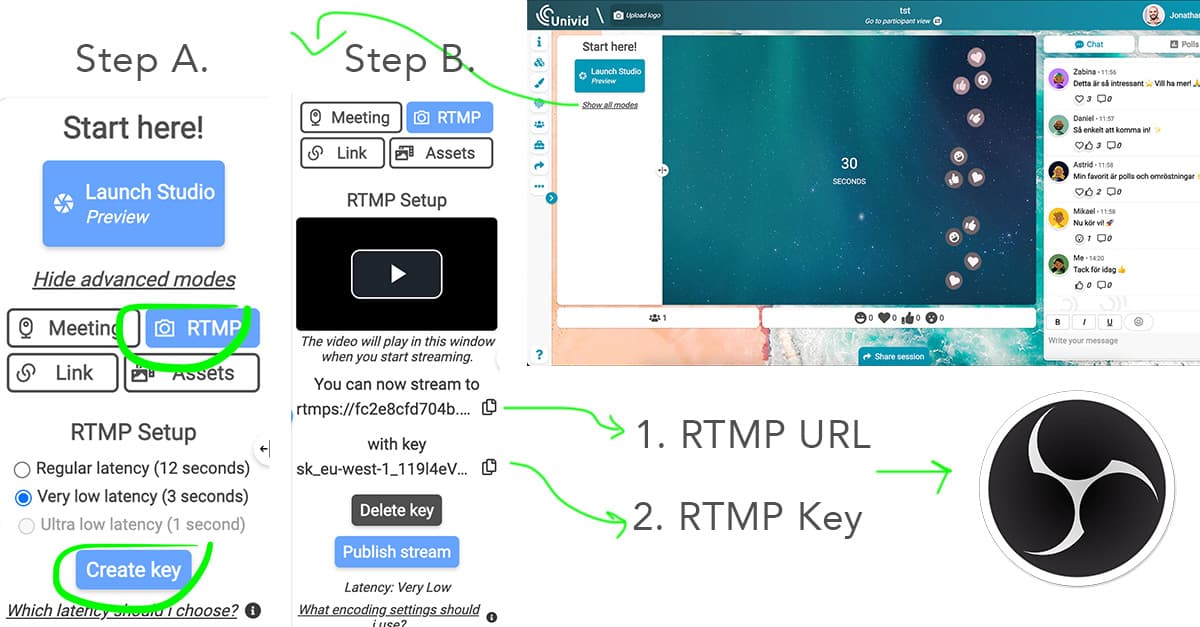
How to choose latency and generate your URL and key to stream to in Univid.
Then you can easily copy these into your studio tool for streaming - probably if you're reading here you are using OBS, but it works exactly the same if you run e.g. Vmix.
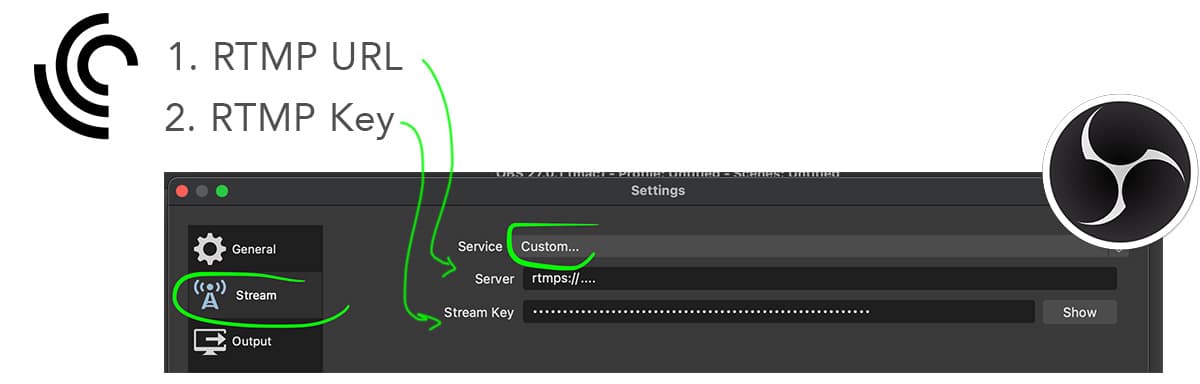
The OBS interface - where you under Settings > Stream can paste your two information pieces for streaming
Settings and delay when broadcasting live
When you live stream via RTMP, there is always a delay, or so-called. "latency". Historically, a standard latency has been approx. 40-45 seconds, from the time you send a video segment, until the viewers receive it. It has posed challenges when it comes to creating interaction in the broadcast, e.g. when you have to ask a direct question to the viewers.
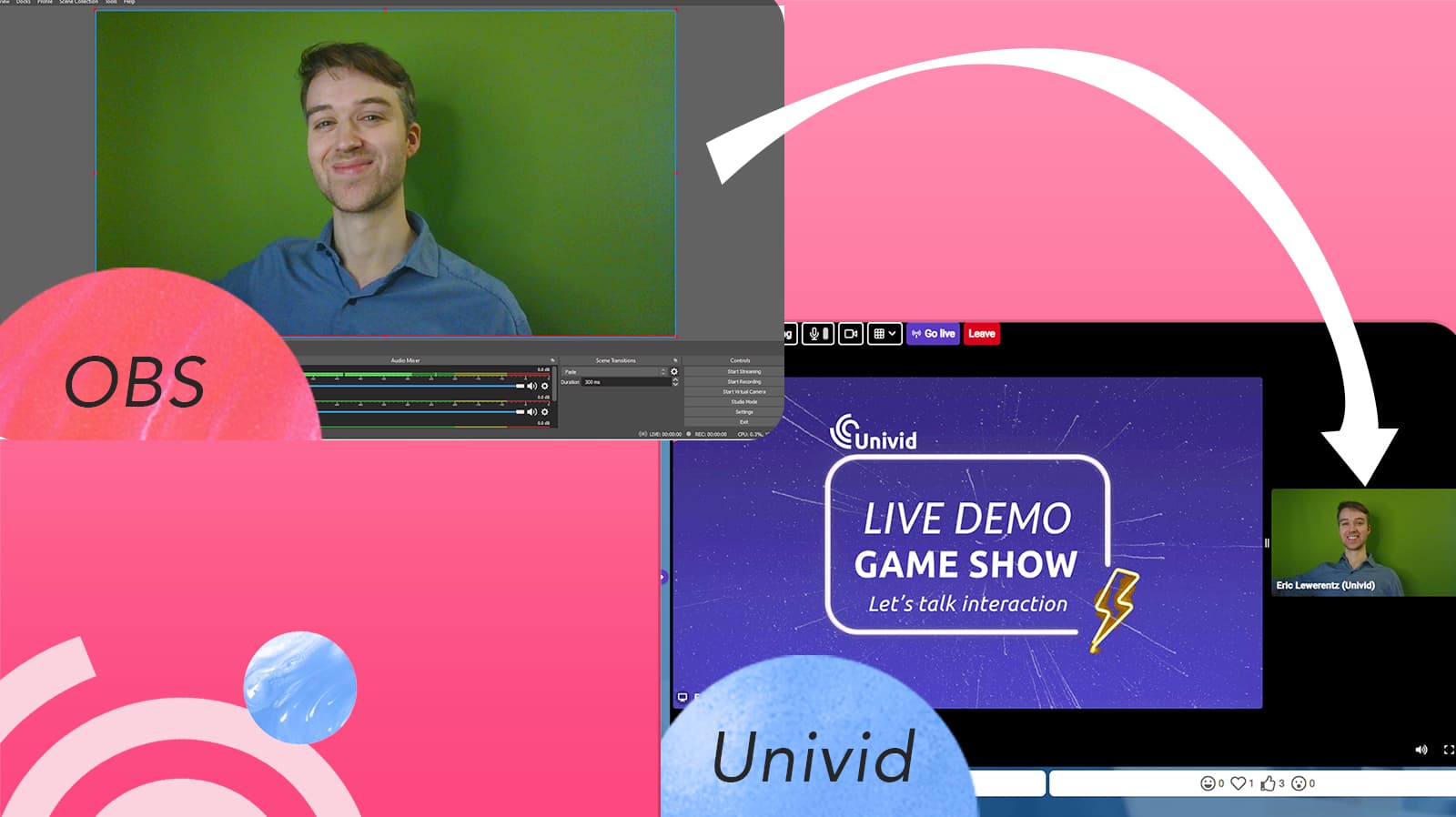
Univid offers RTMP broadcasting from e.g. OBS, or similar software, with a delay of 3s. One of the absolute lowest latencies on the market, enabling direct contact and interaction with your viewers. In other words, you can create authentic live experiences!
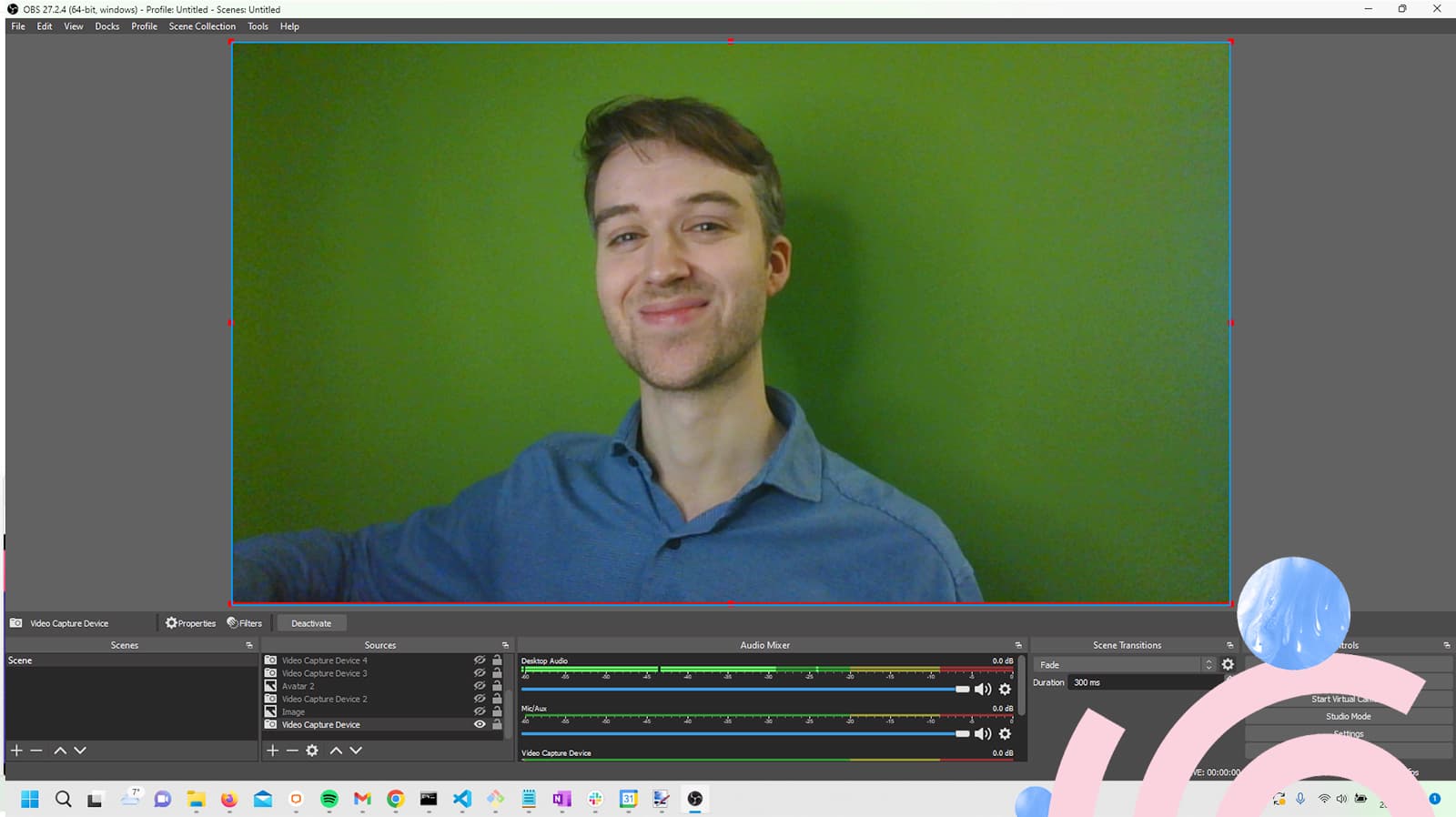
What are you waiting for - try it out below.
Usein kysytyt kysymykset (FAQ)
Q: What is OBS?
Q: How do I use OBS for live streaming?
Q: Does OBS work with all operating systems?
Q: Can I use OBS for professional broadcasting?
Q: Is OBS really free to use?


Samankaltaiset webinaarintegraitot
Tutustu muihin saman kategorian integraatioihin